Screenshot Uploader
🟠 Updated over a year ago🖼️ Gallery (7 images)
🔍 Analysis
- 👍 0.6% endorsement rate
- 🏆 #778 of 1560 bukkit mods in this game by downloads
📋 About This Mod
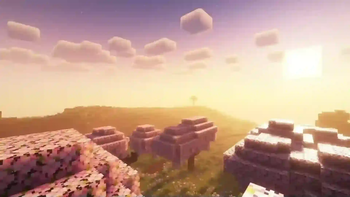
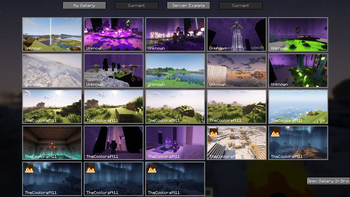
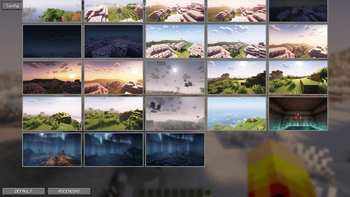
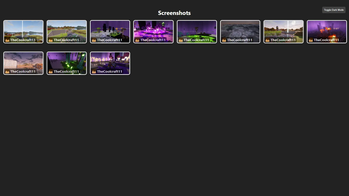
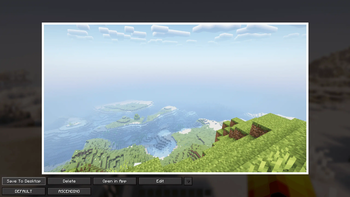
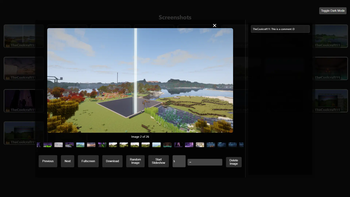
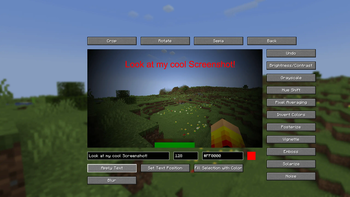
**ScreenshotUploader** is a Minecraft mod that enhances your gameplay by allowing you to upload your in-game screenshots directly to a designated server. This feature enables you to share your creations and memorable moments with friends and the community effortlessly. It simplifies the process of sharing in-game screenshots, eliminating the need for external applications or manual uploads. !(https://cdn.modrinth.com/data/w6ZC8JLF/images/67a422041caae77f991ccfc16c2dd38b1b4f6960.webp) # Features: - Ingame Screenshot Browser: View your own local or the screenshots of your friends on the webserver. (Press ```G``` to open) - Ingame Image Editor: press ```V``` before making your screenshot or click the edit button in your local gallery - Direct Uploads: Capture and upload your Minecraft screenshots to a specified server without leaving the game. - Integrated Webserver: Screenshots are uploaded to an integrated webserver, which displays them in a convenient web gallery. - Custom Server Support: Configure the mod to upload screenshots to your own server, providing flexibility and control over your shared content. The mod supports HTTP POST requests using multipart form data, making it compatible with custom servers or APIs. - Screenshot Collections: Organize your screenshots into collections for easier management. - Customizable Settings: Adjust the mod's settings to suit your preferences, including upload paths and server configurations. - Screenshot Statistics: View statistics about your uploaded screenshots, such as the number of uploads or a heatmap of your most active screenshot areas. - Ingame Screenshot Editor: Edit your screenshots directly in-game before uploading them, allowing you to add text, annotations, or other modifications. - Local Gallery: View your own screenshots in a local gallery, making it easy to browse and manage your captured moments. - Web Gallery: Access a web gallery to view and share your uploaded screenshots with others. - Comments and Tags: Add comments and tags to your screenshots for better organization and sharing. - Screenshot Deletion Permissions: Screenshots can be deleted by the uploader, any player, server operators, or via a passphrase, configurable to match your servers needs - Screenshot Metadata: Optionally embed information such as world name, server IP, and coordinates. Displayed in the ingame gallery. Disabled by default. - Ask Before Uploading: Display a promt in which you can select what you want to do with the taken screenshot. (Save, Upload, Delete) - By default only screenshots made while the HUD is hidden (F1) are uploaded. Can be disabled in the config: `requireNoHud` ## Requirements: - Requires Minecraft Fabric 1.21 - 1.21.5. - Requires a server that can handle HTTP POST requests and has public endpoints for uploads (if not using the integrated webserver). ## 1. Installation Guide ### Client #### **Prerequisites**: Minecraft Fabric 1.21 - 1.21.5 **Steps**: 1. Download the mod file from (https://modrinth.com/mod/screenshot-uploader). 2. Place the ```.jar``` in the mods folder of your Minecraft directory. 3. Launch Minecraft with the mod installed. 4. (Join a server with the mod installed) 5. Take a screenshot 6. You can open the Gallery by pressing ```G``` 7. You can adjust the mod to your needs by opening the config ```Ingame Gallery -> Config``` ### Server **Steps**: 1. Download the mod or plugin file from (https://modrinth.com/mod/screenshot-uploader). 2. Place the ```.jar``` in the mods / plugins folder of your Server directory. 3. Open the config (config/screenshotUploader/serverConfig.json, for Fabric; plugins/ScreenshotUploader/config.yml, for Paper, etc.) 4. Change the entry ```websiteURL``` to the public url of the webserver (the url to open the screenshots gallery in the browser) e.g. ```"https://yourserverip.com:4567"``` 5. Take a look at the (https://github.com/TheCoolcraft11/ScreenshotUploader/wiki) or change the config
ScreenshotUploader is a Minecraft mod that enhances your gameplay by allowing you to upload your in-game screenshots directly to a designated server. This feature enables you to share your creations and memorable moments with friends and the community effortlessly. It simplifies the process of sharing in-game screenshots, eliminating the need for external applications or manual uploads. !(https://cdn.modrinth.com/data/w6ZC8JLF/images/67a422041caae77f991ccfc16c2dd38b1b4f6960.webp)
# Features:
- Ingame Screenshot Browser: View your own local or the screenshots of your friends on the webserver. (Press ```G``` to
- open)
- Ingame Image Editor: press ```V``` before making your screenshot or click the edit button in your local gallery
- Direct Uploads: Capture and upload your Minecraft screenshots to a specified server without leaving the game.
- Integrated Webserver: Screenshots are uploaded to an integrated webserver, which displays them in a convenient web
- gallery.
- Custom Server Support: Configure the mod to upload screenshots to your own server, providing flexibility and control
- over your shared content. The mod supports HTTP POST requests using multipart form data, making it compatible with
- custom servers or APIs.
- Screenshot Collections: Organize your screenshots into collections for easier management.
- Customizable Settings: Adjust the mod's settings to suit your preferences, including upload paths and server
- configurations.
- Screenshot Statistics: View statistics about your uploaded screenshots, such as the number of uploads or a heatmap of
- your most active screenshot areas.
- Ingame Screenshot Editor: Edit your screenshots directly in-game before uploading them, allowing you to add text,
- annotations, or other modifications.
- Local Gallery: View your own screenshots in a local gallery, making it easy to browse and manage your captured
- moments.
- Web Gallery: Access a web gallery to view and share your uploaded screenshots with others.
- Comments and Tags: Add comments and tags to your screenshots for better organization and sharing.
- Screenshot Deletion Permissions: Screenshots can be deleted by the uploader, any player, server operators, or via a
- passphrase, configurable to match your servers needs
- Screenshot Metadata: Optionally embed information such as world name, server IP, and coordinates. Displayed in the
- ingame gallery. Disabled by default.
- Ask Before Uploading: Display a promt in which you can select what you want to do with the taken screenshot. (Save,
- Upload, Delete)
- By default only screenshots made while the HUD is hidden (F1) are uploaded. Can be disabled in the config:
- `requireNoHud`
## Requirements:
- Requires Minecraft Fabric 1. 21 - 1. 21. 5.
- Requires a server that can handle HTTP POST requests and has public endpoints for uploads (if not using the integrated
- webserver).
## 1. Installation Guide
#### Prerequisites: Minecraft Fabric 1. 21 - 1. 21. 5
Steps: 1. Download the mod file from (https://modrinth.com/mod/screenshot-uploader). 2. Place the ```.jar``` in the mods folder of your Minecraft directory. 3. Launch Minecraft with the mod installed. 4. (Join a server with the mod installed) 5. Take a screenshot 6. You can open the Gallery by pressing ```G``` 7. You can adjust the mod to your needs by opening the config ```Ingame Gallery -> Config```
Steps: 1. Download the mod or plugin file from (https://modrinth.com/mod/screenshot-uploader). 2. Place the ```.jar``` in the mods / plugins folder of your Server directory. 3. Open the config (config/screenshotUploader/serverConfig.json, for Fabric; plugins/ScreenshotUploader/config.yml, for Paper, etc.) 4. Change the entry ```websiteURL``` to the public url of the webserver (the url to open the screenshots gallery in the browser) e.g. ```"https://yourserverip.com:4567"``` 5. Take a look at the (https://github.com/TheCoolcraft11/ScreenshotUploader/wiki) or change the config
📊 Mod Details
- Game
- Minecraft Plugins
- Author
- TheCoolcraft11
- Version
- 2.2.0
- Downloads
- 2,931
- Endorsements
- 19
- Category
- bukkit
- Created
- 12/31/2024
- Updated
- 7/23/2025
- Game Versions
- 1.21, 1.21.1, 1.21.2, 1.21.3, 1.21.4
- Tags
- social, storage, utility
🔧 How to Install Minecraft Plugins Mods
Download from Modrinth. Use Prism Launcher or drop into your mods folder.
📖 Full step-by-step install guide for Minecraft Plugins →
Visit the official mod page for specific installation instructions for this mod.
🎮 Need cheat codes or console commands? Check ur gaming wiki for Minecraft Plugins commands, item IDs, and more.
❓ Frequently Asked Questions
Which Minecraft Plugins versions does Screenshot Uploader support?
The author lists 1.21, 1.21.1, 1.21.2, 1.21.3, 1.21.4, 1.21.5. Other versions may work but are untested by the author.
What is the latest version of Screenshot Uploader?
Version 2.2.0, published 2025-07-23 with 2,931 downloads recorded at the source.
Keep browsing — more Minecraft Plugins mods await