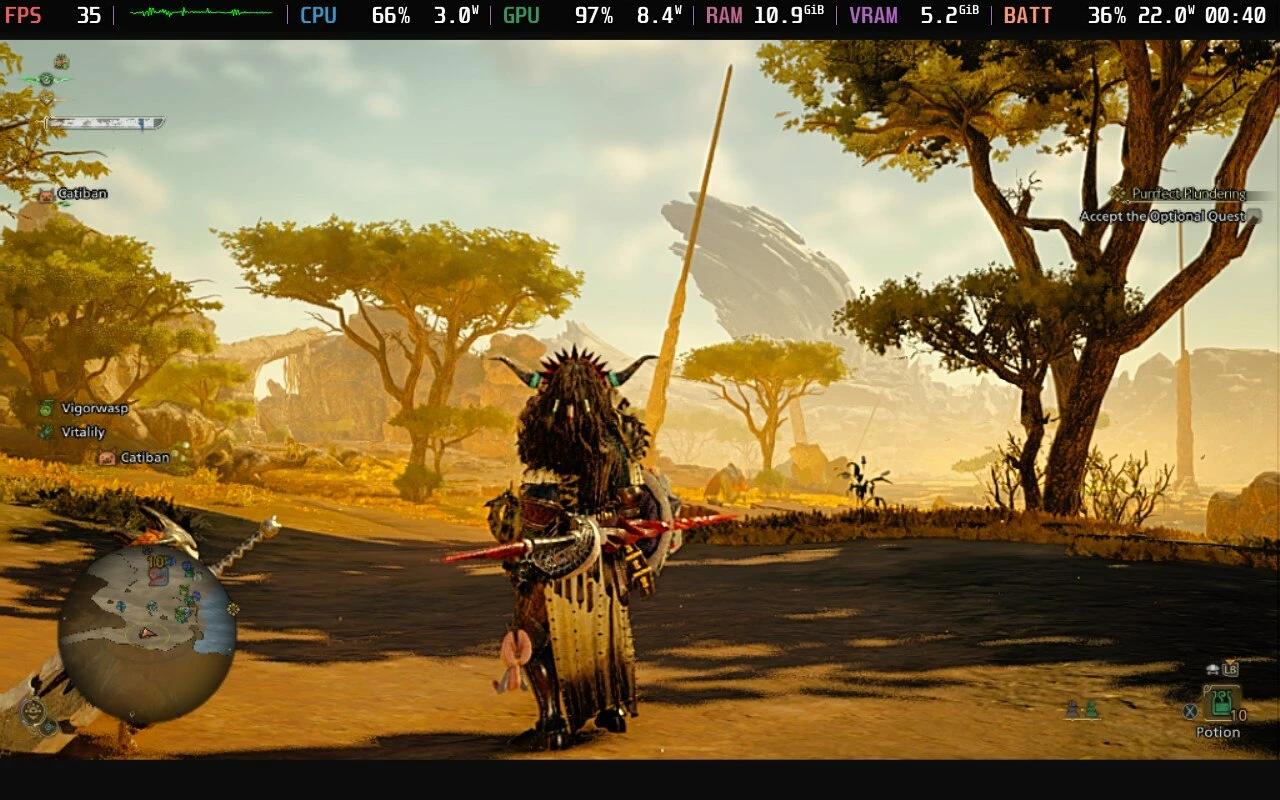
The Little Engine that Shouldn't - Steam Deck config (OLED and LCD)
🟡 Updated this yearPreview
🔍 Analysis
- 👍 1.6% endorsement rate — high engagement, a strong quality signal
- 🏆 #91 of 345 Gameplay mods in this game by downloads
📋 About This Mod
This mod is outdated.
congratulations Capcom for finally releasing this gameThere is no need to follow this guide anymore. Following update 1. 040. 03. 02, the game works. If you had this config installed, delete it, and let the game make a new one. I'm glad I got to help folks play while we waited.
This is as much a guide as it is a mod. The config is but one piece. You don't need to do all of it, but the more of it the better. Together we can make the Steam Deck port Capcom couldn't! Check back from time to time, I will be continuously updating this as I learn things.
---MOD INSTALLATION---
The config file goes in your Monster Hunter Wilds install directory. Overwrite if asked.
If you are using an LCD model Steam Deck, there is now a version of the config for you too! It's under Optional Files on the download page. Shoutout to Omegafox313 for figuring out what was needed!
After installing the mod, right click the file in your file explorer, and under Permissions, set all fields to "Only View". This keeps the game from overwriting the config settings. You can still change your settings in-game, they just won't be saved after you quit playing.
As of November 2025, GE Proton 10-25 works fine, along with Experimental and Hotfix. It's possible there's a specific version that is the least prone to crashing, if you find it tell me and I'll put you here.
After launching the game, open the Steam menu (three dot button), and under the Performance tab, toggle Disable Frame Limit and keep the refresh rate at 90hz (60hz) on LCD). As well, set your GPU clock to 1600mhz.
---Additional Tweaks---
Proton
Changing your version of Proton might help if you're experiencing crashes or odd behavior. Hotfix is what worked best for me while I was writing the guide, but you can also try Proton GE. If either of these are giving you issues, try Experimental.
Controller Settings
Reducing deadzones might help with how it feels to play. This doesn't actually do anything to stop/prevent input lag, it's more a personal preference sort of thing, but give it a shot and see what you think. In the Steam settings menu, under Controller, open Calibration and Advanced Settings. Under Joysticks, try lowering your deadzone slightly. I keep mine at 6192, you might find a different setting feels better to you.
Resolution[/
A comprehensive guide and config file for optimizing The Little Engine that Shouldn't on Steam Deck (OLED and LCD). Includes setup instructions and a ready-to-use config to improve performance and controls. Ideal for Steam Deck players seeking a smoother experience.
✨ Key Features
📊 Pros & Cons
✅ Pros
- Solid community support with 116 endorsements
- Over 7,400 downloads shows real demand
- Covers both OLED and LCD Steam Decks
⚠️ Cons
- May require manual configuration tweaks
For Steam Deck owners who play The Little Engine that Shouldn't and want a smoother experience without fiddling with settings. Skip if you're on PC or prefer default controls.
💡 Beginner Tips
- Ensure your Steam Deck is updated to the latest OS before applying the config.
- Back up your current config file before replacing it with the mod's version.
- Test the config in the game's first level to see if controls feel right.
📊 Mod Details
- Game
- Monsterhunterwilds Mods
- Author
- PFCacklefanny
- Version
- 1.6
- Downloads
- 7,424
- Endorsements
- 116
- Category
- Gameplay
- Created
- 3/3/2025
- Updated
- 12/18/2025
🔧 How to Install Monster Hunter Wilds Mods
Download from Nexus Mods.
📖 Full step-by-step install guide for Monster Hunter Wilds →
Visit the official mod page for specific installation instructions for this mod.
🎮 Need cheat codes or console commands? Check ur gaming wiki for Monster Hunter Wilds commands, item IDs, and more.
Keep browsing — more Monster Hunter Wilds mods await