Item Name Recolorer
🟠 Updated over a year ago⚠️ Install Order · 2 steps
Install in this order, then this mod last — most mods fail to load without their framework and dependencies in place.
🖼️ Gallery (2 images)
🔍 Analysis
- 👍 0.3% endorsement rate
- 🏆 #211 of 253 datapack mods in this game by downloads
📋 About This Mod
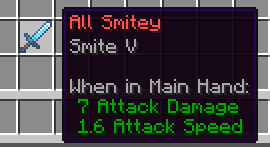
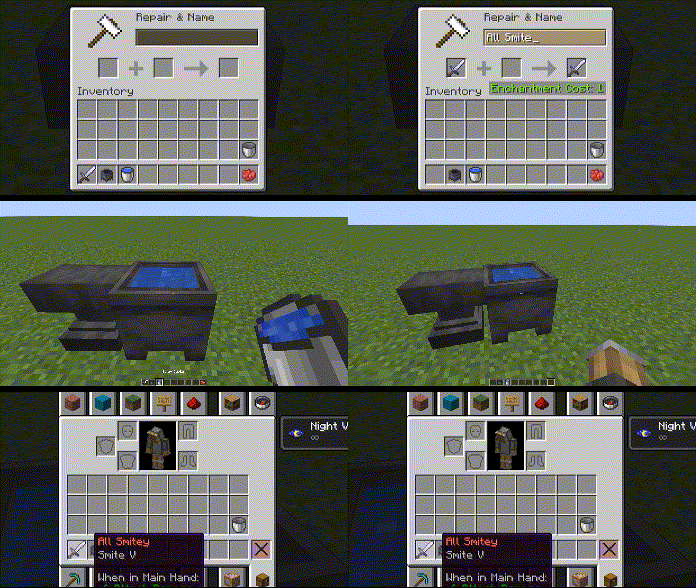
## Features * Recolor any item's name with any dye * Apply custom RGB Hex coloring * Apply Bold, Italics, Underline, Strikethrough, and Obfuscation ### How recoloring works Very simple. Place a cauldron, and fill it with water to any level Any item you want to change MUST be renamed hrough the anvil first. You can add a space at the end to maintain its current/default name. Once you've renamed your item with an anvil, toss it right into the cauldron filled with water Now it's time to select a color and/or format Say you wanted a red item name; you'd then toss red dye into the same cauldron, wait a few seconds and your item's custom name should be red. Note that when you give the item a dye in the cauldron, it will reset all formatting (removes bold, italics, underline, etc.). So be sure to set the color first! Blue dye gives you blue, white dye gives you white, etc. !(https://cdn.modrinth.com/data/pnyCkr1d/images/5d2c5b1fb9f091a37d0ddd537a10a51e9ed3faa0.png) ### How reformatting works Same thing with coloring. Toss the item and its format item in a cauldron of water. Here's a list of possible formats and their corresponding item. * Bold: Ink Sac * Italics: Stick * Underline: String * Strikethrough: Feather * Text Obfuscate: Glow Ink Sac Again, setting the color of an item will reset all formatting to default. Color first, formats second. You can apply multiple formats, including all of them at once. Here's an example: !(https://cdn.modrinth.com/data/pnyCkr1d/images/e08908962c9dbc87681777b48602166879fa7736.gif) ### Custom RGB (Hex codes) Let's say you want a fully red item name, the hex code for full red is `FF 00 00`. Grab any paper item and rename it in the anvil as `#FF0000`. You must have it start with `#` and no spacing. Finally, throw it in the cauldron with your item as if it were a dye and you can then get custom colors on your item. See (https://modrinth.com/user/Pepsied)
## Features Recolor any item's name with any dye Apply custom RGB Hex coloring Apply Bold, Italics, Underline, Strikethrough, and Obfuscation
### How recoloring works Very simple. Place a cauldron, and fill it with water to any level
Any item you want to change MUST be renamed hrough the anvil first. You can add a space at the end to maintain its current/default name.
Once you've renamed your item with an anvil, toss it right into the cauldron filled with water
Now it's time to select a color and/or format
Say you wanted a red item name; you'd then toss red dye into the same cauldron, wait a few seconds and your item's custom name should be red. Note that when you give the item a dye in the cauldron, it will reset all formatting (removes bold, italics, underline, etc.). So be sure to set the color first!
Blue dye gives you blue, white dye gives you white, etc.
!(https://cdn.modrinth.com/data/pnyCkr1d/images/5d2c5b1fb9f091a37d0ddd537a10a51e9ed3faa0.png)
### How reformatting works Same thing with coloring. Toss the item and its format item in a cauldron of water.
Here's a list of possible formats and their corresponding item.
Bold: Ink Sac Italics: Stick Underline: String Strikethrough: Feather Text Obfuscate: Glow Ink Sac
Again, setting the color of an item will reset all formatting to default. Color first, formats second.
You can apply multiple formats, including all of them at once.
Here's an example:
!(https://cdn.modrinth.com/data/pnyCkr1d/images/e08908962c9dbc87681777b48602166879fa7736.gif)
### Custom RGB (Hex codes) Let's say you want a fully red item name, the hex code for full red is `FF 00 00`.
Grab any paper item and rename it in the anvil as `#FF0000`.
You must have it start with `#` and no spacing. Finally, throw it in the cauldron with your item as if it were a dye and you can then get custom colors on your item.
See (https://modrinth.com/user/Pepsied)
📊 Mod Details
- Game
- Minecraft Mods
- Author
- Pepsied
- Version
- 1.0.1+mod
- Downloads
- 4,306
- Endorsements
- 14
- Category
- datapack
- Created
- 2/18/2025
- Updated
- 9/1/2025
- Game Versions
- 1.21.5, 1.21.6, 1.21.7, 1.21.8, 1.21.9
- Tags
- equipment, game-mechanics, utility
🔧 How to Install Minecraft Mods Mods
Download from Modrinth. Use Prism Launcher or drop into your mods folder.
📖 Full step-by-step install guide for Minecraft Mods →
Visit the official mod page for specific installation instructions for this mod.
🎮 Need cheat codes or console commands? Check ur gaming wiki for Minecraft Mods commands, item IDs, and more.
❓ Frequently Asked Questions
Which Minecraft Mods versions does Item Name Recolorer support?
The author lists 1.21.5, 1.21.6, 1.21.7, 1.21.8, 1.21.9, 1.21.10. Other versions may work but are untested by the author.
What is the latest version of Item Name Recolorer?
Version 1.0.1+mod, published 2025-09-01 with 4,306 downloads recorded at the source.
Keep browsing — more Minecraft Mods mods await