HomeGui
🟡 Updated this year⚠️ Install Order · 2 steps
Install in this order, then this mod last — most mods fail to load without their framework and dependencies in place.
🖼️ Gallery (3 images)
🔍 Analysis
- 👍 0.3% endorsement rate
- 🏆 #552 of 945 fabric mods in this game by downloads
📋 About This Mod
# HomeGui ## You Type /home Twenty Times Per Session. There's a Better Way. Open any survival Minecraft stream right now. Watch the chat. You'll see it: /home, /home base, /home farm, /home nether, /home shop, /home base, /home farm again. Every few minutes. For hours. It's muscle memory at this point and nobody questions it because "that's just how you teleport home." But it's slow. You have to stop what you're doing. Open chat. Type the command. Sometimes you misspell it. Sometimes you forget the name. On servers with 10+ homes, you end up tab-completing through a list that scrolls off screen. HomeGui replaces all of that with one keybind and one click. Press H. See all your homes in a clean grid. Click the one you want. You're there. Three seconds instead of ten. No chat spam. No typos. No forgetting names. No stopping your flow. --- ## How It Works HomeGui is a client-side Fabric mod. It does not replace or modify your server's home system — it reads from it. The server (EssentialsX, CMI, or whatever home plugin it runs) stores your homes. HomeGui reads that data and presents it in a graphical interface on your client. That's the important thing: HomeGui is a VISUAL LAYER on top of your existing home system. It doesn't create its own separate home database. It doesn't conflict with the server's plugin. It doesn't send commands differently than you would manually. When you click a home in the GUI, it sends the same `/home <name>` command that you'd type in chat — it just does it instantly, without you typing anything. This means: - Works on ANY server that uses a home command system - No server installation required - No permission changes needed - No configuration for server admins to do - Your homes are the same homes the server already knows about --- ## Compatible Server Plugins HomeGui detects and works with: - **EssentialsX** — The most common home plugin. Full support. - **CMI** — Another popular choice. Full support. - **Any plugin using standard /home commands** — HomeGui monitors your home list through the chat responses these plugins send. If a plugin responds to /homelist or /homes with a formatted list, HomeGui parses it. Not sure if your server's plugin works? Install HomeGui and run /homelist or /homes in chat. If the server responds with a list of your homes, HomeGui can read it. --- ## Features — Complete Breakdown ### Visual Home Grid When you press H, a clean grid interface opens showing every home you have saved. Each home appears as an item in the grid with: - The home name displayed below the item - An icon (configurable — defaults to a compass or bed based on context) - Visual indicators for favorites and recent homes - Smooth hover animation when your cursor is over a home The grid handles any number of homes. 5 homes? Fits in one page. 50 homes? Scrollable with smooth momentum. The layout auto-adjusts to fill the available space cleanly. ### One-Click Teleport Click a home. You teleport. That's the entire interaction. No confirmation dialog (unless you enable one in settings). No "are you sure?" popup. No secondary menu. Click and go. The teleport command fires instantly, the GUI closes, and you're at your destination. If you want a confirmation step for expensive teleports (servers with teleport cooldowns or costs), you can enable a confirmation toggle in settings. ### Favorites Right-click any home to mark it as a favorite. Favorited homes appear at the top of the grid with a gold star indicator. This is for the homes you use constantly — your base, your farm, your shop. One right-click. That's it. Right-click again to unfavorite. Favorites persist across sessions. They're stored in the local config file on your client. ### History The mod tracks which homes you've teleported to recently. A "History" section at the top of the GUI shows your last 10 teleports in reverse chronological order. Click to teleport to a recent home without scrolling through your full list. This is useful when you're bouncing between two or three homes during a building session — base to farm, farm to base, base to shop. The history section keeps them within one click at all times. ### Keyboard Shortcuts When the GUI is open, keys 1-9 map to the first 9 homes in your list. Press 1 to teleport to the first home. Press 5 for the fifth. This is for power users who've memorized their home order and want sub- second teleportation. The shortcuts map to the visual order in the GUI — favorites first, then the rest. Reorder by adjusting favorites, and the shortcuts follow. ### Search A search bar at the top of the GUI. Type to filter homes by name. The list updates in real time as you type. Useful when you have dozens of homes and need to find one fast. Search clears when you close the GUI. Next time you open it, you see everything again. ### Themes Five built-in color themes for the GUI: - **Purple** — Deep purple with violet accents (default) - **Ocea
## You Type /home Twenty Times Per Session. There's a Better Way.
Open any survival Minecraft stream right now. Watch the chat. You'll see it: /home, /home base, /home farm, /home nether, /home shop, /home base, /home farm again. Every few minutes. For hours. It's muscle memory at this point and nobody questions it because "that's just how you teleport home."
But it's slow. You have to stop what you're doing. Open chat. Type the command. Sometimes you misspell it. Sometimes you forget the name. On servers with 10+ homes, you end up tab-completing through a list that scrolls off screen.
HomeGui replaces all of that with one keybind and one click.
Press H. See all your homes in a clean grid. Click the one you want. You're there. Three seconds instead of ten. No chat spam. No typos. No forgetting names. No stopping your flow.
## How It Works
HomeGui is a client-side Fabric mod. It does not replace or modify your server's home system — it reads from it. The server (EssentialsX, CMI, or whatever home plugin it runs) stores your homes. HomeGui reads that data and presents it in a graphical interface on your client.
That's the important thing: HomeGui is a VISUAL LAYER on top of your
existing home system. It doesn't create its own separate home database.
It doesn't conflict with the server's plugin. It doesn't send commands
differently than you would manually. When you click a home in the GUI,
it sends the same `/home
This means: - Works on ANY server that uses a home command system - No server installation required - No permission changes needed - No configuration for server admins to do - Your homes are the same homes the server already knows about
## Compatible Server Plugins
HomeGui detects and works with:
- EssentialsX — The most common home plugin. Full support.
- CMI — Another popular choice. Full support.
- Any plugin using standard /home commands — HomeGui monitors your
- home list through the chat responses these plugins send. If a plugin
- responds to /homelist or /homes with a formatted list, HomeGui parses
- it.
Not sure if your server's plugin works? Install HomeGui and run /homelist or /homes in chat. If the server responds with a list of your homes, HomeGui can read it.
## Features — Complete Breakdown
### Visual Home Grid
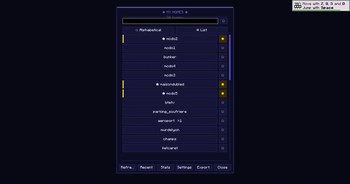
When you press H, a clean grid interface opens showing every home you have saved. Each home appears as an item in the grid with:
- The home name displayed below the item
- An icon (configurable — defaults to a compass or bed based on context)
- Visual indicators for favorites and recent homes
- Smooth hover animation when your cursor is over a home
The grid handles any number of homes. 5 homes? Fits in one page. 50 homes? Scrollable with smooth momentum. The layout auto-adjusts to fill the available space cleanly.
### One-Click Teleport
Click a home. You teleport. That's the entire interaction.
No confirmation dialog (unless you enable one in settings). No "are you sure?" popup. No secondary menu. Click and go. The teleport command fires instantly, the GUI closes, and you're at your destination.
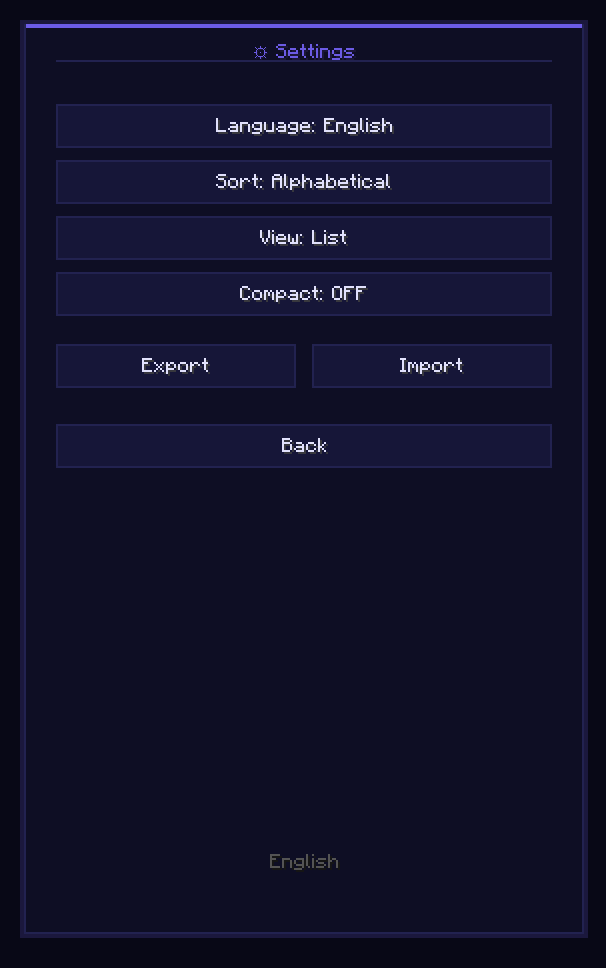
If you want a confirmation step for expensive teleports (servers with teleport cooldowns or costs), you can enable a confirmation toggle in settings.
### Favorites
Right-click any home to mark it as a favorite. Favorited homes appear at the top of the grid with a gold star indicator. This is for the homes you use constantly — your base, your farm, your shop.
One right-click. That's it. Right-click again to unfavorite.
Favorites persist across sessions. They're stored in the local config file on your client.
### History
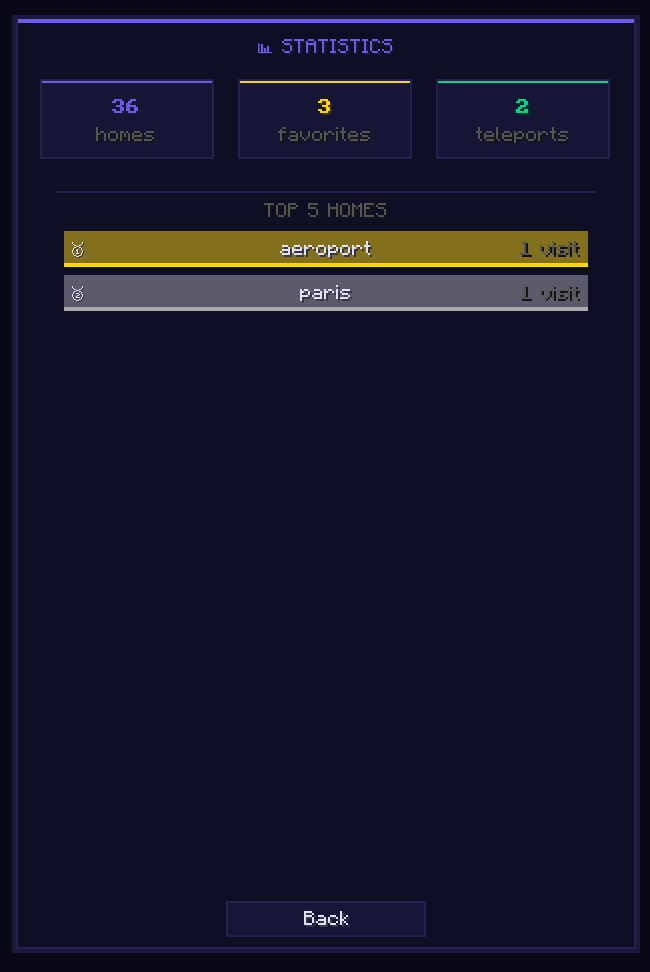
The mod tracks which homes you've teleported to recently. A "History" section at the top of the GUI shows your last 10 teleports in reverse chronological order. Click to teleport to a recent home without scrolling through your full list.
This is useful when you're bouncing between two or three homes during a building session — base to farm, farm to base, base to shop. The history section keeps them within one click at all times.
### Keyboard Shortcuts
When the GUI is open, keys 1-9 map to the first 9 homes in your list. Press 1 to teleport to the first home. Press 5 for the fifth. This is for power users who've memorized their home order and want sub- second teleportation.
The shortcuts map to the visual order in the GUI — favorites first, then the rest. Reorder by adjusting favorites, and the shortcuts follow.
A search bar at the top of the GUI. Type to filter homes by name. The list updates in real time as you type. Useful when you have dozens of homes and need to find one fast.
Search clears when you close the GUI. Next time you open it, you see everything again.
Five built-in color themes for the GUI:
- Purple — Deep purple with violet accents (default)
- **Ocea
📊 Mod Details
- Game
- Minecraft Mods
- Author
- maxlananass
- Version
- v3.5.0-0.19.3
- Downloads
- 2,400
- Endorsements
- 8
- Category
- fabric
- Created
- 12/3/2025
- Updated
- 7/11/2026
- Game Versions
- 1.21.11
- Tags
- game-mechanics, management, utility
🔧 How to Install Minecraft Mods Mods
Download from Modrinth. Use Prism Launcher or drop into your mods folder.
📖 Full step-by-step install guide for Minecraft Mods →
Visit the official mod page for specific installation instructions for this mod.
🎮 Need cheat codes or console commands? Check ur gaming wiki for Minecraft Mods commands, item IDs, and more.
❓ Frequently Asked Questions
Which Minecraft Mods versions does HomeGui support?
The author lists 1.21.11. Other versions may work but are untested by the author.
What is the latest version of HomeGui?
Version v3.5.0-0.19.3, published 2026-07-11 with 2,400 downloads recorded at the source.
Keep browsing — more Minecraft Mods mods await