IconSortingTags
🟡 Updated this yearPreview
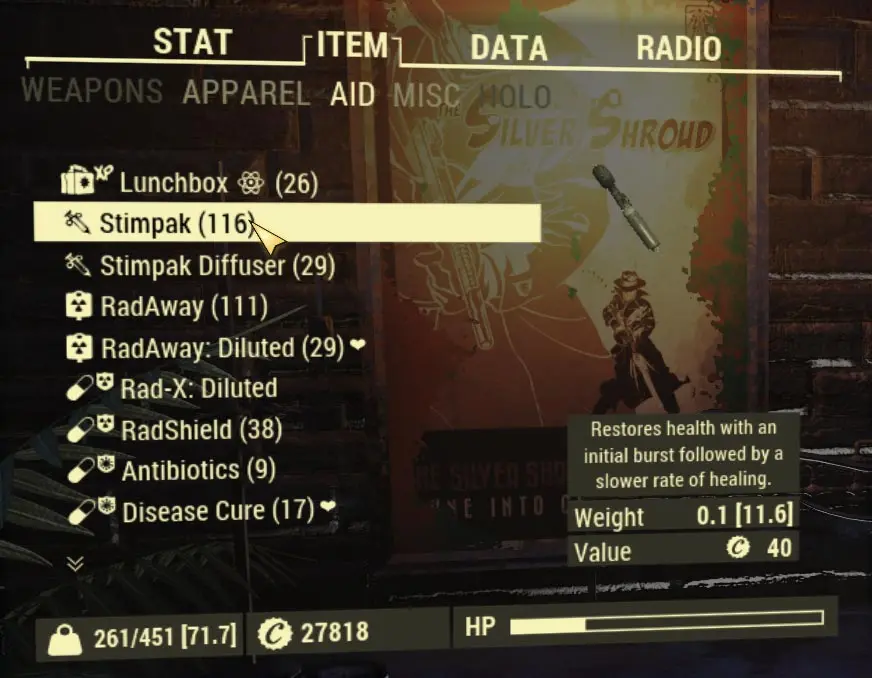
🔍 Analysis
- 👍 2.4% endorsement rate — high engagement, a strong quality signal
- 🏆 #10 of 112 User Interface mods in this game by downloads
📋 About This Mod
Add icons as sorting tags for a clean inventory management. Support EN - FR - DE - ES - ESMX - PTBR - IT - PL - RU - JA - KO - ZHHANS - ZHHANT
IconSortingTags is an alternative sorting modification that uses icons.
The are shorters that way, also they are de facto working in all languages.
It works by adding new glyphs to the default game fonts, then by changing the in game text strings for items, in order to include the new glyphs.
Basically - and technically - it doesnt do anything else than adding a new alternate speaking language to the game.
------------------------------
Important Notes:
- Update IconSortingTags 2. 9. 1+ requires xTranslator 1. 6. 3+: so please, pick the last xTranslator update, otherwise you will get missing icon and other weird stuff.
- If you are using the game via the Bethesda.net launcher, I strongly suggest you to turn off the auto-updater, so you can restore the interface file before starting to update. It seems that the launcher sometimes doesnt automatically verify the data and messes up with the modified interface files.
In all cases, if you are having an issue with the mod or the game, verify your game files (in bethesda.net launcher ->game options) , before installing the mod.
------------------------------
Installation (please read carefully):
Things have dramatically changed in Fallout76 1. 2. 0+: We now can't easily override the game font in order to get icon tags by simply using an ini procedure.
We have to trick the game a bit, by patching the original files. Obviously, this will not work with the Nuclear Winter game mode.
-Copy the Interface folder provided in the IconSortingtags distribution into the fallout76\data\ folder (you can use Vortex to do that)
This should look like this:
Fallout76\data\interface\
-If you don't have it already, Get xTranslator v 1. 6. 3+ (update needed if you used previous version): https://www.nexusmods.com/starfield/mods/313
-Start xTranslator
-On first screen, choose the Fallout76 workspace
-If it's the first time you launch xTranslator, the option window open itself automatically.
-Check if the game path is correctly set there, otherwise manually set it in the data field. (The cache information should be in green)
-Close the option window
-Open menu -> Wizards -> Header Wizards
- Follow the instructions from step 1 to 5, in order to generate your strings,
--- in step 3, load the headerRules provided in the main Iconsortingtags distribution, it is located in a subfolder named "_HeaderRules_for_xTranslator"
--- in step 4, you can choose a template, with more or less icons and variants
-And finally, step 6, you need to patch the game file in One Click (assuming you correctly put the relevant files in the interface folder as mentionned above). If you did everything correctly, the wizard log should show 2 successfull results.
Also, VERY IMPORTANT: After each Game Update, it is absolutely necessary to regenerate the strings (step 1 to 5) and repatch the assets in order to fit the game version. If you fail to do that, you will get some strings errors, or worse.
It is you own responsibility to maintain your installation up to date.
Note1: you can also create a backup of the relevant Ba2 (do this one time only after each game release, otherwise you will probably overwrite your backup with patched files), and you can restore the backup directly (if something goes wrong)
Note2: you do not need to restore original game files in order to repatch them when the mod is updated. Just copy the updated files in the interface folder, then hit the processor and patch buttons in the wizard again.
Note3: About the rules templates
Armor/Weapon: FULL = icons for armors/Weapons - NO = No icons for armors/Weapons (like vanilla)
Junk: FULL = detailled icons for most junk objects, adds diversity when looting - LITE: all junk items have the same default icon (except bones/animals parts)
weight / no weight : toogle the weight tag yes/no
text: components for junk are shown as text, not as icon (the string is longer in that case)
Scrap: FULL = all scraps have a specific icon - LITE = scraps have icon by category (metal/others)
================================================================================
I see no change or dots or weird icons:
-Please, read the install pr
📊 Mod Details
- Game
- Fallout76 Mods
- Author
- McGuffin
- Version
- 2.9.1
- Downloads
- 67,303
- Endorsements
- 1,617
- Category
- User Interface
- Created
- 12/7/2018
- Updated
- 7/2/2026
🔧 How to Install Fallout76 Mods
Download from Nexus Mods.
📖 Full step-by-step install guide for Fallout76 →
Visit the official mod page for specific installation instructions for this mod.
🎮 Need cheat codes or console commands? Check ur gaming wiki for Fallout76 commands, item IDs, and more.
Keep browsing — more Fallout76 mods await