EZ Auto Backup (Including Skip Intro option)
🟠 Updated over a year agoPreview
🔍 Analysis
- 👍 4.4% endorsement rate — high engagement, a strong quality signal
📋 About This Mod
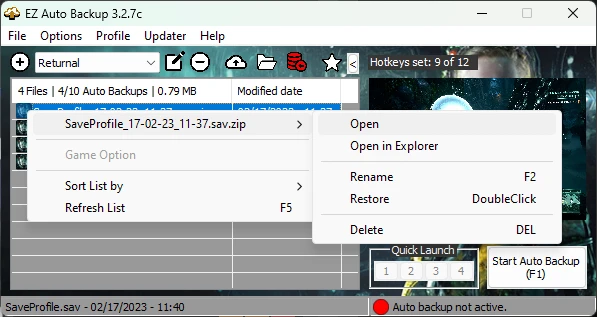
EZ Auto Backup is a save file backup managing tool and was originally made for Elden Ring with autohotkey.
It can create backups of the save file each time the game saves or with an intervall, which is very usefull for games with only 1 auto save file. Like in a souls game after you died, just return to the titlescreen and restore one of the last save backup, or you can manually create backups before a boss fight or your favorite cutscenes to restore them any time. This will also helps to prevent currupted save files which may happens, so you don't lose all your playing hours.
If you have any requests, suggestions, found some bugs or need any help, feel free to join the Discord.
You can also support me through Patreon, if you like my work.
Please download at https://www.nexusmods.com/liesofp/mods/19
You have to disable cloud save and exit the game first before restoring a backup.
Mods Manager
For Modders
-You can create a mod.ini with the following informations:
author=Name
version=x.x
info=Mod description
-Put the mod.ini with an optional .jpg or .png file in the archive to show up those informations in the Mods Manger.
-For best compatibility pack your mods with the following folder structure
-
[]Mods goes to GameDir\Folder1\Paks\~Mods
In the archive:
[]Mods goes to GameDir\mods\Folder1\ModFile1 and GameDir\mods\Folder2\ModFile1, ModFile2
in the archive:
The ~Mods folder under 1. and Folder1, Folder2 under 2. can be entered in the "Main mods subfolders" to make sure to move to the right folder.[/
]For Users
-Open the "Mods Manager" under "Menubar > Profile > Mods Manager".
-Choose your "Mods source folder", where all the mods are stored.
-Choose a "Mods destination folder", where the mods should be installed (e.g. for Hogwarts Legacy the mods goes to Hogwarts Legacy\Phoenix\Content\Paks\~mods).
-The mods should be shown in the "Mods" tab.
-To install a mod you can either double click, or check the mods you want to install/uninstall
EZ Auto Backup is a save backup tool for Souls-like games and others, offering customizable keyboard/controller support. It includes a Mods Manager and an optional skip intro feature, useful for games without manual saves or corrupted save files.
✨ Key Features
📊 Pros & Cons
✅ Pros
- Handy for games without manual saves or when saves get corrupted
- Customizable controls mean you can set it up your way
- Comes with a Mods Manager, so it's more than just a backup tool
⚠️ Cons
- Only 62 endorsements, so it's not widely tested by the community
- Description is cut off, so full feature list is unclear
- Last updated in October 2024, so may not support the latest games or patches
For Souls-like players who've lost progress to corrupted saves and want an automated safety net. Also for modders who want a simple way to manage their mods alongside backups. Skip if you're on a game with built-in cloud saves and don't mod heavily.
💡 Beginner Tips
- Test the backup on a non-critical save first to ensure it works with your game.
- Customize the hotkeys to avoid conflicts with in-game controls.
- Use the Mods Manager to keep your mods organized, but double-check compatibility with your game version.
📊 Mod Details
- Game
- Returnal Mods
- Author
- ai8772
- Version
- 3.5.7a
- Downloads
- 1,411
- Endorsements
- 62
- Category
- Tools and Utilities
- Created
- 2/17/2023
- Updated
- 10/6/2024
🔧 How to Install Returnal Mods
Download from Nexus Mods.
📖 Full step-by-step install guide for Returnal →
Visit the official mod page for specific installation instructions for this mod.
🎮 Need cheat codes or console commands? Check ur gaming wiki for Returnal commands, item IDs, and more.
Keep browsing — more Returnal mods await