Party Screen Enhancements
⚪ Last updated 2022Preview
🔍 Analysis
- 👍 2.0% endorsement rate — high engagement, a strong quality signal
- 🏆 #4 of 32 User Interface mods in this game by downloads
📋 About This Mod
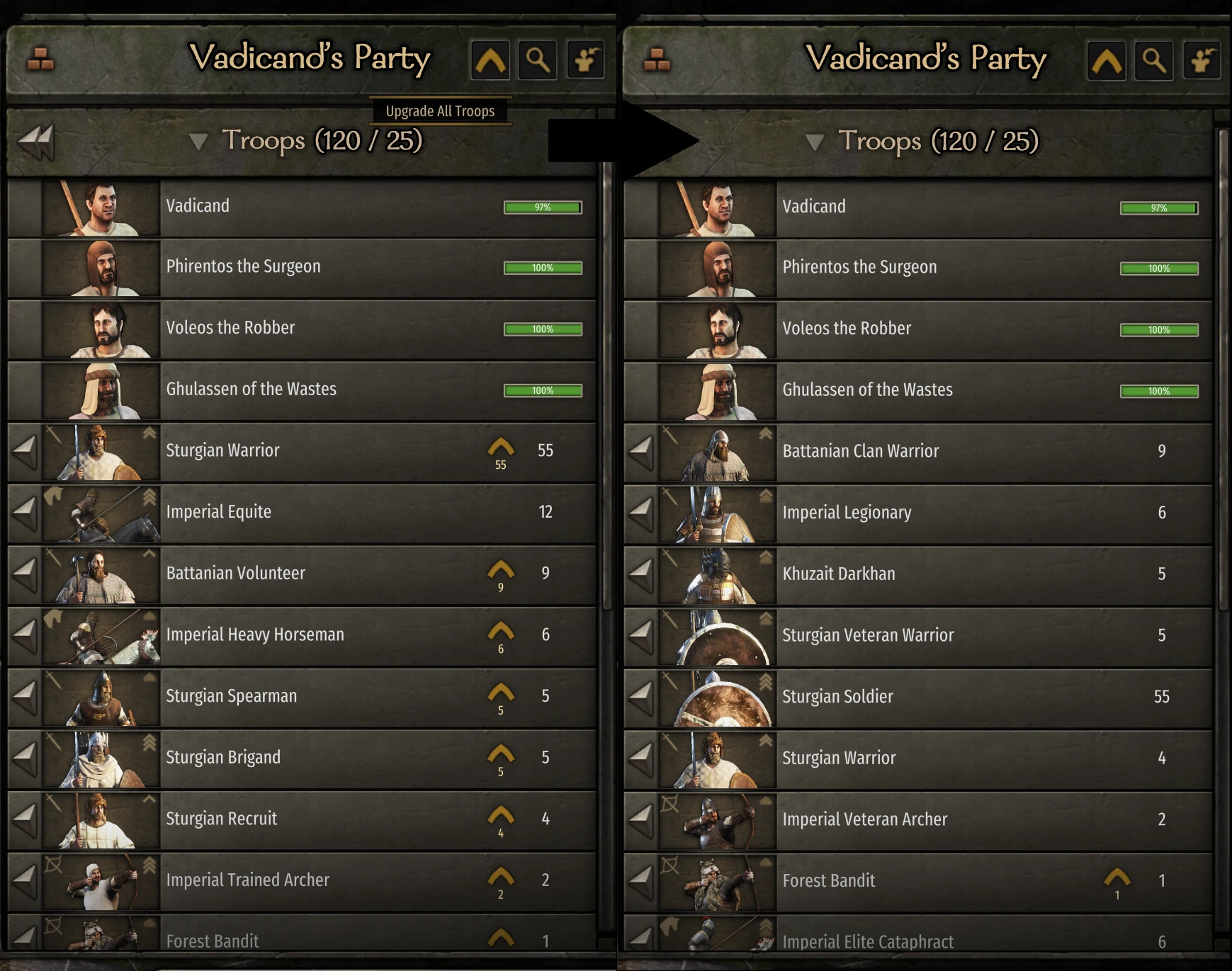
Adds an Upgrade All, Sort all, and a Recruit All Prisoners button to the party interface.Includes a user friendly UI for configuration.
The mod adds a Upgrade All button, Sort all button, and a Recruit All Prisoners button to the top right of the party screen.
In addition, it adds a variety of configuration options in a user friendly UI to allow customization.
-
[]The Sort button will by default sort on ascending formation types (So if you have default formations: Infantry -> Archers -> Cavalry).
[
]Within these formation categories it will sort on descending tier (So Tier 5 -> Tier 4 -> etc).[]Within these tiers it will sort alphabetically.
[]The sorter is fully customizable to your liking, so if you wish to change it just go into the Settings menu on the party screen.
The Upgrade All button will by default only upgrade units with 1 potential upgrade path, from top to bottom on the party list.
In order to also upgrade units with multiple upgrade paths you can CTRL + SHIFT + Left click on a upgrade option to select it. Click it again to deselect.
So for example, if you have an Imperial Recruit and wish all recruits get upgraded to Imperial Archers you CTRL + SHIFT + Left Click on the button you would usually use to upgrade them manually. A message will inform you that the upgrade path has been set.
Thereafter, if you click upgrade all the units with either 1 path, or a path manually selected, will be upgraded if possible.
Alternatively, you can enabled the 50/50 recruitment option to recruit equally from both paths.
If you wish to stop a certain one path unit from upgrading you can simply CTRL + SHIFT + Left click on its upgrade button to disable the auto upgrade for that unit.
Prisoners
The prisoner recruitment will by default recruit prisoners top to bottom in your prisoner list if they can be recruited at that point.
It will stop once you reach your party limit. The party limit can be ignored by CTRL clicking the Recruit All button
If you wish to stop a certain prisoner type from being recruited simply CTRL + SHIFT + Left click on their recruit button when it is enabled to disable recruitment.
Sorting Config
If you wish to change the default sort order, click on the Settings button in the Party screen.
In this menu you can order the sorters and change whether they sort ascendingly or descendingly.
You can drag and drop them.
The sorters will be used top to bottom, the lower layer being used whenever the layer above it had two units which were equal.
So, if you have a tier sorter, followed by a name sorter, the function will first evaluate the tier.
If both units have the same Tier, their name will be used instead, etc.
To close the menu simply press Escape or click the Red button on the top right.
Other Options
- Turn off log messages
- Display the amount of infantry/archers/cavalry you have
- 50/50 Upgrades
- Automatic Sorting
- Combined party label
- Seperate Sorters for prisoners/garrisons
- Additional tooltips
Config
There is a config located in your Documents/Mount and Blade II Bannerlord/Configs/Mods/
PartyScreenEnhancements.xml is used for saving your selected upgrade paths, sorters, and other selected preferences.
All of the settings saved there can be changed in-game using the settings interface.
Installing:
- Download the latest version.
- Go to the Bannerlord Modules directoryC:\Program Files (x86)\Steam\steamapps\common\Mount & Blade II Bannerlord\Modules
- Extract the zip in the Modules directory
- Unblock both the dlls in the bin/Win64_Shipping_Client folder of the mod. (Right click -> Properties -> Bottom of the page tick "Unblock")
- Launch Bannerlord and enable the mod under the Mods tab
Uninstalling:
If you wish to uninstall the mod you can simply disable it in the Mods tab or remove it from your Modules folder.
It should have no lasting effect on your save file, so you can remove it mid-game.
📊 Mod Details
- Game
- Mountandblade2bannerlord Mods
- Author
- Hirtol
- Version
- 1.6.10
- Downloads
- 430,316
- Endorsements
- 8,815
- Category
- User Interface
- Created
- 4/13/2020
- Updated
- 10/25/2022
🔧 How to Install Mountandblade2bannerlord Mods
Download from Nexus Mods.
📖 Full step-by-step install guide for Mountandblade2bannerlord →
Visit the official mod page for specific installation instructions for this mod.
🎮 Need cheat codes or console commands? Check ur gaming wiki for Mountandblade2bannerlord commands, item IDs, and more.
Keep browsing — more Mountandblade2bannerlord mods await