CUBES
🟡 Updated this year🖼️ Gallery (1 images)
🔍 Analysis
- 🏆 #86 of 107 items mods in this game by downloads
📋 About This Mod
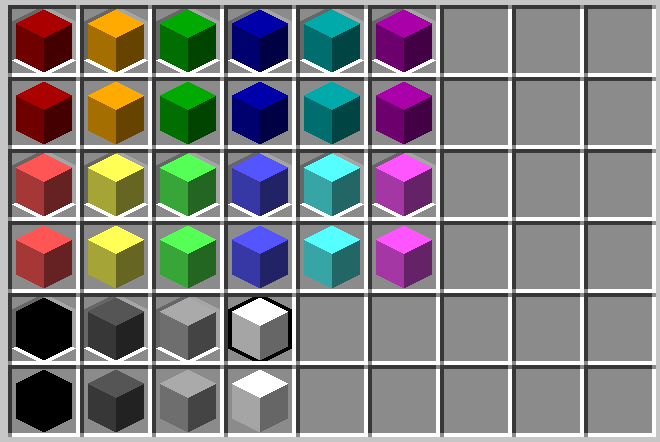
# CUBES Adds various cubes that you can have as items. They don't really do anything. **But they look cool** ## Give yourself a cube: ``` /give @p minecraft:acacia_boat ``` ## Cube colors: - `aqua` - `black` - `blue` - `dark_aqua` - `dark_blue` - `dark_gray` - `dark_green` - `dark_purple` - `dark_red` - `gold` - `gray` - `green` - `light_purple` - `red` - `white` - `yellow` You can also add `_bordered` to the end of any color to get a cube with a border. All borders are white except for the `white_bordered` cube, which has a black border. I provide the main 16 chat colors as usable textures. Feel free to add your own. ## Adding a custom cube: 1. Unzip the pack 2. Go to the `assets/cubes/models/block` folder 3. Create a new file. Name it whatever you like, just make sure it ends in ".json" 4. Copy the following code: ```json { "format_version": "1.21.11", "credit": "Made with Blockbench", "parent": "cubes:block/cube_bordered", "textures": { "border": "cubes:block/<color>", "color": "cubes:block/<color>" } } ``` 5. Edit the file (use notepad, vscode, whatever) Paste the copied code and make the following changes: Set `"parent"` to either `"cubes:block/cube"` or `"cubes:block/cube_bordered"` If you aren't making a bordered cube, remove the line with `"border"` in it. Then, replace both instances of `<color>` with any of the named chat colors. Use the (https://minecraft.wiki/w/Formatting_codes) if you don't know them. Now, save and close the file 6. Next, go to the `assets/cubes/items` folder 7. Create a file with the **SAME NAME** as the file you made in step 3. 8. Copy the following code: ```json { "model": { "type": "minecraft:model", "model": "cubes:block/<file>" } } ``` 9. Replace `<file>` with the **EXACT** name of the file you created in step 3, but without ".json" at the end. 10. Save and close the file 11. Enjoy your custom cube! ## Adding a custom color 1. Go to your favorite image editer (I like https://piskelapp.com). 2. Create a new 16x16 image, and color the entire thing with one solid color. 3. Save the photo as a png and put it into the `assets/cubes/textures/block` folder. 4. Use the name of the photo without ".png" to replace `<color>` in any new cube you make. (You can also add a design to the texture, but it will apply the texture to all sides of the block.)
# CUBES Adds various cubes that you can have as items. They don't really do anything. But they look cool
## Give yourself a cube: ``` /give @p minecraft:acacia_boat ```
## Cube colors: - `aqua` - `black` - `blue` - `dark_aqua` - `dark_blue` - `dark_gray` - `dark_green` - `dark_purple` - `dark_red` - `gold` - `gray` - `green` - `light_purple` - `red` - `white` - `yellow`
You can also add `_bordered` to the end of any color to get a cube with a border. All borders are white except for the `white_bordered` cube, which has a black border. I provide the main 16 chat colors as usable textures. Feel free to add your own.
## Adding a custom cube:
1. Unzip the pack
2. Go to the `assets/cubes/models/block` folder
3. Create a new file. Name it whatever you like, just make sure it ends in ".json"
4. Copy the following code:
```json
{
"format_version": "1. 21. 11",
"credit": "Made with Blockbench",
"parent": "cubes:block/cube_bordered",
"textures": {
"border": "cubes:block/
## Adding a custom color
1. Go to your favorite image editer (I like https://piskelapp.com).
2. Create a new 16x16 image, and color the entire thing with one solid color.
3. Save the photo as a png and put it into the `assets/cubes/textures/block` folder.
4. Use the name of the photo without ".png" to replace `
📊 Mod Details
- Game
- Minecraft Resource Packs
- Author
- TurboJax
- Version
- 1.0.1
- Downloads
- 15
- Endorsements
- 0
- Category
- items
- Created
- 7/31/2026
- Updated
- 8/2/2026
- Game Versions
- 1.21, 1.21.1, 24w33a, 24w34a, 24w35a
- Tags
- items, models, tweaks
🔧 How to Install Minecraft Resource Packs Mods
Download from Modrinth. Use Prism Launcher or drop into your mods folder.
📖 Full step-by-step install guide for Minecraft Resource Packs →
Visit the official mod page for specific installation instructions for this mod.
🎮 Need cheat codes or console commands? Check ur gaming wiki for Minecraft Resource Packs commands, item IDs, and more.
❓ Frequently Asked Questions
Which Minecraft Resource Packs versions does CUBES support?
The author lists 1.21, 1.21.1, 24w33a, 24w34a, 24w35a, 24w36a. Other versions may work but are untested by the author.
What is the latest version of CUBES?
Version 1.0.1, published 2026-08-02 with 15 downloads recorded at the source.
Keep browsing — more Minecraft Resource Packs mods await