TigerReportsSupports
🟠 Updated over a year ago🖼️ Gallery (2 images)
🔍 Analysis
- 🏆 #169 of 235 management mods in this game by downloads
📋 About This Mod
# TigerReportsSupports by MrTigreroux Depends on (https://modrinth.com/plugin/tigerreports) plugin ## Description TigerReportsSupports adds supports to (https://modrinth.com/plugin/tigerreports) plugin.\ Currently, it is adding **Discord** support. ## Pictures **Alert of a new report:**\ !(https://i.imgur.com/QyhAnS1.png) **In progress report:**\ !(https://i.imgur.com/04yYZc1.png) **Important report:**\ !(https://i.imgur.com/gACNZiO.png) **Processed report:**\ !(https://i.imgur.com/MVtl5NE.png) **Commands:**\ !(https://i.imgur.com/tS9w69S.png) ## Installation <details> <summary>Creation of the Discord bot</summary> - Go on this web page: https://discordapp.com/developers/applications/me (You must be logged on Discord) - Click on the **New App** button: !(https://i.imgur.com/CACTt91.png) - Put the **bot name** of your choice under **Name**. Then click on **Create**. !(https://i.imgur.com/dzB43yq.png) - Convert the App to Bot by clicking on **Add Bot** button: !(https://i.imgur.com/5HIcBGs.png) - Untick **Public bot**, untick **Requires OAuth2 Code Grant** and tick **Message Content Intent**, then **Save Changes**: !(https://i.imgur.com/9HHwwZ3.png)) - Open a new web page and **paste, without validating, this URL**: ``` https://discordapp.com/api/oauth2/authorize?client_id=<ID>&scope=bot&permissions=0 ``` !(https://i.imgur.com/W7PESJs.png) - Replace the `<ID>` in the above link with your bot **Client ID**, then press Enter: !(https://i.imgur.com/hkk3YfZ.png) !(https://i.imgur.com/WkqC6oG.png) - Select your **Discord server**, then authorize the bot to join: !(https://i.imgur.com/I5rz2Hb.png) !(https://i.imgur.com/kN6XqnW.png) *The Discord bot is now created and is a member of your Discord server.* </details> ### Installation of TigerReportsSupports - Stop your Spigot server. - Install the latest version of (https://modrinth.com/plugin/tigerreports) plugin if you don't already have it. - Download and put TigerReportsSupports.jar file in the `plugins` folder of your server. - Launch your server. If you have a **BungeeCord network**, you can install this plugin: - on **only 1 Spigot server** (**recommended**): - Advantages: - You only need to edit 1 config.yml file to change settings of your Discord bot. - The bot is managed by only 1 Spigot server, that means that all your other Spigot servers don't consume their resources (CPU, RAM, ...) for the Discord bot. - Disadvantage: - The server where TigerReportsSupports is installed needs at least 1 player to receive BungeeCord notifications and then update the Discord bot. That means that the reports aren't displayed by the Discord bot if there is no player on the server where the plugin is installed. - on **all your Spigot servers** (**not** recommended):\ You need to set (https://github.com/MrTigreroux/TigerReportsSupports/blob/a5e2a5180243b8ad1c7ac08165b70da610c36da2/TigerReportsSupports/src/config.yml#L19) setting to `yes` in the config.yml file of all your Spigot servers. - Advantage: - All reports will be displayed on Discord, whereas there is at least 1 player on the Spigot server or not. - Disadvantages: - All settings in config.yml file only concern the Spigot server where they are. That means that if you want to change a setting of your Discord bot, you will have to change the config.yml file of all your Spigot servers. - All your Spigot servers will use their resources (CPU, RAM, ...) to run the TigerReportsSupports plugin and therefore manage the Discord bot. <details> <summary>Setting up the Discord bot</summary> - Open config.yml file in `./plugins/TigerReportsSupports` folder. - Replace "false" to "true" for `Discord: Enabled`. - Copy the Discord bot **Token** from the web page of the bot ((https://discordapp.com/developers/applications/me) if you closed it) by **clicking on Copy** button and put it for `Discord: Token`. !(https://i.imgur.com/72IlVKK.png) - Go on your Discord server and **right click** on the **text channel** you want the bot to use and then click on `Copy the id`: !(https://i.imgur.com/zQpsOQP.png)\ Other way of getting the id: type the name of the **text channel** you want the bot to use with a **"\" before**, then copy it (highlighted below) !(https://i.imgur.com/qggYJBo.png) - Put the **channel ID** (previously copied) in the config to `Discord: Channel`. - Type in a **channel of your Discord server** the reload command: `/tigerreports reload`. That's it, the bot will now display all new reports in this channel.\ You can change every message in messages.yml file and then reload with the previous command. </details> ## Config The plugin can be configured in config.yml file. ``` Discord: Enabled: Define if the Discord support is used. Token: Define the Token of the Disco
# TigerReportsSupports by MrTigreroux
Depends on (https://modrinth.com/plugin/tigerreports) plugin
## Description
TigerReportsSupports adds supports to (https://modrinth.com/plugin/tigerreports) plugin.\ Currently, it is adding Discord support.
## Pictures
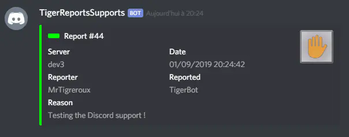
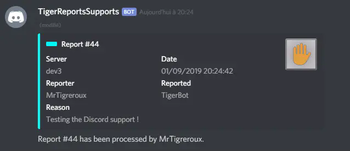
Alert of a new report:\ 
In progress report:\ 
Important report:\ 
Processed report:\ 
Commands:\ 
## Installation
Creation of the Discord bot
- Go on this web page: https://discordapp.com/developers/applications/me (You must be logged on Discord)
- - Click on the New App button:
- !(https://i.imgur.com/CACTt91.png)
- - Put the bot name of your choice under Name. Then click on Create.
- !(https://i.imgur.com/dzB43yq.png)
- - Convert the App to Bot by clicking on Add Bot button:
- 
- - Untick Public bot, untick Requires OAuth2 Code Grant and tick Message Content Intent, then Save Changes:
- )
- - Open a new web page and paste, without validating, this URL:
- ```
- https://discordapp.com/api/oauth2/authorize?client_id=
&scope=bot&permissions=0 - ```
- 
- - Replace the `
` in the above link with your bot Client ID, then press Enter: - 
- 
- - Select your Discord server, then authorize the bot to join:
- 
- 
The Discord bot is now created and is a member of your Discord server.
### Installation of TigerReportsSupports
- Stop your Spigot server.
- - Install the latest version of (https://modrinth.com/plugin/tigerreports) plugin if you don't already have it.
- - Download and put TigerReportsSupports.jar file in the `plugins` folder of your server.
- - Launch your server.
If you have a BungeeCord network, you can install this plugin: - on only 1 Spigot server (recommended): - Advantages: - You only need to edit 1 config.yml file to change settings of your Discord bot. - The bot is managed by only 1 Spigot server, that means that all your other Spigot servers don't consume their resources (CPU, RAM, ...) for the Discord bot. - Disadvantage: - The server where TigerReportsSupports is installed needs at least 1 player to receive BungeeCord notifications and then update the Discord bot. That means that the reports aren't displayed by the Discord bot if there is no player on the server where the plugin is installed. - on all your Spigot servers (not recommended):\ You need to set (https://github.com/MrTigreroux/TigerReportsSupports/blob/a5e2a5180243b8ad1c7ac08165b70da610c36da2/TigerReportsSupports/src/config.yml#L19) setting to `yes` in the config.yml file of all your Spigot servers. - Advantage: - All reports will be displayed on Discord, whereas there is at least 1 player on the Spigot server or not. - Disadvantages: - All settings in config.yml file only concern the Spigot server where they are. That means that if you want to change a setting of your Discord bot, you will have to change the config.yml file of all your Spigot servers. - All your Spigot servers will use their resources (CPU, RAM, ...) to run the TigerReportsSupports plugin and therefore manage the Discord bot.
Setting up the Discord bot
- Open config.yml file in `./plugins/TigerReportsSupports` folder.
- - Replace "false" to "true" for `Discord: Enabled`.
- - Copy the Discord bot Token from the web page of the bot ((https://discordapp.com/developers/applications/me) if you closed it) by clicking on Copy button and put it for `Discord: Token`.
 - Go on your Discord server and right click on the text channel you want the bot to use and then click on `Copy the id`:
\ Other way of getting the id: type the name of the text channel you want the bot to use with a "\" before, then copy it (highlighted below)
 - Put the channel ID (previously copied) in the config to `Discord: Channel`. - Type in a channel of your Discord server the reload command: `/tigerreports reload`.
That's it, the bot will now display all new reports in this channel.\ You can change every message in messages.yml file and then reload with the previous command.
The plugin can be configured in config.yml file. ``` Discord: Enabled: Define if the Discord support is used. Token: Define the Token of the Disco
📊 Mod Details
- Game
- Minecraft Plugins
- Author
- MrTigreroux
- Version
- 1.6.13
- Downloads
- 197
- Endorsements
- 2
- Category
- management
- Created
- 12/1/2024
- Updated
- 11/28/2024
- Game Versions
- 1.7.2, 1.7.3, 1.7.4, 1.7.5, 1.7.6
- Tags
- management, storage, utility
🔧 How to Install Minecraft Plugins Mods
Download from Modrinth. Use Prism Launcher or drop into your mods folder.
📖 Full step-by-step install guide for Minecraft Plugins →
Visit the official mod page for specific installation instructions for this mod.
🎮 Need cheat codes or console commands? Check ur gaming wiki for Minecraft Plugins commands, item IDs, and more.
❓ Frequently Asked Questions
Which Minecraft Plugins versions does TigerReportsSupports support?
The author lists 1.7.2, 1.7.3, 1.7.4, 1.7.5, 1.7.6, 1.7.7. Other versions may work but are untested by the author.
What is the latest version of TigerReportsSupports?
Version 1.6.13, published 2024-11-28 with 197 downloads recorded at the source.
Keep browsing — more Minecraft Plugins mods await