EasyArmorStands
🟡 Updated this year🖼️ Gallery (1 images)
🔍 Analysis
- 👍 0.7% endorsement rate
- 🏆 #463 of 1560 bukkit mods in this game by downloads
📋 About This Mod
# EasyArmorStands Armor stand and display entity editor. !(https://cdn.56738.me/easyarmorstands/banner2.png) # Installation Download the `.jar` file and place it in your `plugins` folder. # Usage Use `/eas give` and follow the instructions. If you get stuck, refer to the detailed instructions below. ## Editing entities Hold the tool and right-click an entity to select it. <img alt="Tools" src="https://cdn.56738.me/easyarmorstands/screenshots/tools2.png" width="50%" /> Right-click a line to use the **Move** tool. Move your cursor by walking or looking around, then right-click to confirm your changes. You can abort your changes and restore the previous position by left-clicking instead. Right-click a circle to use the **Rotate** tool. This works just like the Move tool. Some entities let you switch between local and global mode. Local mode is affected by the rotation, for example, you can use it to move an armor stand along its arms. Global mode uses global coordinates. Use `/eas undo` and `/eas redo` to undo/redo your changes. You can undo any operation performed using EasyArmorStands, as well as manually placing or destroying armor stands. ## Armor stands Armor stands have 7 bones: * Head * Body * Left arm * Right arm * Left leg * Right leg * Position After selecting an armor stand, you will also have to select which bone you want to edit. The Position bone is the yellow point in the middle (below the head), the other bones are the white lines. <img alt="Bones" src="https://cdn.56738.me/easyarmorstands/screenshots/bones.png" width="50%" /> You can pick up and carry the armor stand by selecting the position bone and then selecting the **Pick up** tool in the middle (where the lines meet). Use `/eas name` to edit the custom name of an armor stand. This is often used for holograms. Format the name using (https://docs.papermc.io/adventure/minimessage/format/). **Hint:** If you are on 1.19.4+, you should use text displays for holograms, see below. ## Display entities Display entities can be moved, rotated and scaled. Use the menu to place an item into an item display. Use `/eas text` to edit the text of a text display. Format the text using (https://docs.papermc.io/adventure/minimessage/format/). This command also has some subcommands such as `/eas text background`, which can be used to change the background color. **Hint:** Set the billboard mode to `center` in the menu and reset the rotation (`/eas reset`) to create a hologram which always looks at the player. Place a block in a block display by holding Shift and left-clicking it, or use `/eas block`. This command also supports block states like `minecraft:birch_stairs`. Use `/eas box` to resize or move the bounding box. Setting up a bounding box is important for client-side rendering performance. The client will not render display entities if the bounding box is not visible on the screen. By default, display entities do not have a bounding box, so they are always rendered. Use `/eas brightness` to set a custom brightness (light level) of a display entity. ## FancyHolograms integration FancyHolograms holograms can be moved and scaled using EasyArmorStands. ## Group selection Hold Shift while right-clicking an entity to add it to your group selection. After selecting the entities you want to edit, right-click anywhere without holding Shift to begin editing the group. <img alt="Group" src="https://cdn.56738.me/easyarmorstands/group.png" width="50%" /> ## Menu <img alt="Menu" src="https://cdn.56738.me/easyarmorstands/menu2.png" width="50%" align="right" /> The menu can be accessed by pressing F. Group selections do not support the menu. On the bottom left, you can edit the entity equipment slots (armor, held items). The bottom right contains shortcut buttons to quickly select a certain bone. Armor stand settings such as visibility can be changed using the buttons in the top right. ### Head Database integration If (https://www.spigotmc.org/resources/head-database.14280/) is installed and you have permission to use it, you can click the button in the top left to open its menu. After selecting a head, you are returned to the EasyArmorStands menu and can quickly place it into an equipment slot. Permission: `headdb.open` ### TrainCarts integration If (https://www.spigotmc.org/resources/traincarts.39592/) is installed, a button to open the TrainCarts model browser is added to the top left. Permission: `easyarmorstands.traincarts.model` ## Commands This list contains some important commands for features which cannot be accessed using the menu. Use `/eas help` to see the full list of commands and their full usage. * `/eas give`: Give yourself the editor tool * `/eas align`: Move the selected entity to the middle of its block * `/eas clone`: Duplicate the selected entity * `/eas snap angle`: Toggle angle snapping (or specify an increment) * `/eas
# EasyArmorStands
Armor stand and display entity editor.
!(https://cdn. 56738.me/easyarmorstands/banner2.png)
# Installation
Download the `.jar` file and place it in your `plugins` folder.
Use `/eas give` and follow the instructions.
If you get stuck, refer to the detailed instructions below.
## Editing entities
Hold the tool and right-click an entity to select it.

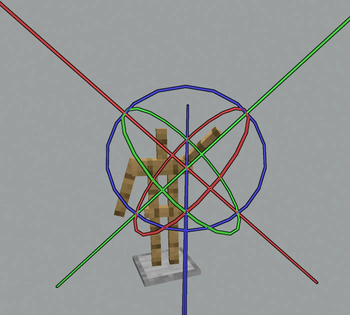
Right-click a line to use the Move tool. Move your cursor by walking or looking around, then right-click to confirm your changes. You can abort your changes and restore the previous position by left-clicking instead.
Right-click a circle to use the Rotate tool. This works just like the Move tool.
Some entities let you switch between local and global mode. Local mode is affected by the rotation, for example, you can use it to move an armor stand along its arms. Global mode uses global coordinates.
Use `/eas undo` and `/eas redo` to undo/redo your changes. You can undo any operation performed using EasyArmorStands, as well as manually placing or destroying armor stands.
## Armor stands
Armor stands have 7 bones:
Head Body Left arm Right arm Left leg Right leg Position
After selecting an armor stand, you will also have to select which bone you want to edit. The Position bone is the yellow point in the middle (below the head), the other bones are the white lines.

You can pick up and carry the armor stand by selecting the position bone and then selecting the Pick up tool in the middle (where the lines meet).
Use `/eas name` to edit the custom name of an armor stand. This is often used for holograms. Format the name using (https://docs.papermc.io/adventure/minimessage/format/).
Hint: If you are on 1. 19. 4+, you should use text displays for holograms, see below.
## Display entities
Display entities can be moved, rotated and scaled.
Use the menu to place an item into an item display.
Use `/eas text` to edit the text of a text display. Format the text using (https://docs.papermc.io/adventure/minimessage/format/). This command also has some subcommands such as `/eas text background`, which can be used to change the background color.
Hint: Set the billboard mode to `center` in the menu and reset the rotation (`/eas reset`) to create a hologram which always looks at the player.
Place a block in a block display by holding Shift and left-clicking it, or use `/eas block`. This command also supports block states like `minecraft:birch_stairs`.
Use `/eas box` to resize or move the bounding box. Setting up a bounding box is important for client-side rendering performance. The client will not render display entities if the bounding box is not visible on the screen. By default, display entities do not have a bounding box, so they are always rendered.
Use `/eas brightness` to set a custom brightness (light level) of a display entity.
## FancyHolograms integration
FancyHolograms holograms can be moved and scaled using EasyArmorStands.
## Group selection
Hold Shift while right-clicking an entity to add it to your group selection. After selecting the entities you want to edit, right-click anywhere without holding Shift to begin editing the group.


The menu can be accessed by pressing F. Group selections do not support the menu.
On the bottom left, you can edit the entity equipment slots (armor, held items).
The bottom right contains shortcut buttons to quickly select a certain bone.
Armor stand settings such as visibility can be changed using the buttons in the top right.
### Head Database integration
If (https://www.spigotmc.org/resources/head-database. 14280/) is installed and you have permission to use it, you can click the button in the top left to open its menu. After selecting a head, you are returned to the EasyArmorStands menu and can quickly place it into an equipment slot.
Permission: `headdb.open`
### TrainCarts integration
If (https://www.spigotmc.org/resources/traincarts. 39592/) is installed, a button to open the TrainCarts model browser is added to the top left.
Permission: `easyarmorstands.traincarts.model`
## Commands
This list contains some important commands for features which cannot be accessed using the menu. Use `/eas help` to see the full list of commands and their full usage.
`/eas give`: Give yourself the editor tool `/eas align`: Move the selected entity to the middle of its block `/eas clone`: Duplicate the selected entity `/eas snap angle`: Toggle angle snapping (or specify an increment) `/eas
📊 Mod Details
- Game
- Minecraft Plugins
- Author
- 56738
- Version
- 3.3.0
- Downloads
- 6,218
- Endorsements
- 42
- Category
- bukkit
- Created
- 12/24/2024
- Updated
- 8/7/2026
- Game Versions
- 1.21.11, 26.1, 26.1.1, 26.1.2, 26.2
- Tags
- decoration, utility
🔧 How to Install Minecraft Plugins Mods
Download from Modrinth. Use Prism Launcher or drop into your mods folder.
📖 Full step-by-step install guide for Minecraft Plugins →
Visit the official mod page for specific installation instructions for this mod.
🎮 Need cheat codes or console commands? Check ur gaming wiki for Minecraft Plugins commands, item IDs, and more.
❓ Frequently Asked Questions
Which Minecraft Plugins versions does EasyArmorStands support?
The author lists 1.21.11, 26.1, 26.1.1, 26.1.2, 26.2. Other versions may work but are untested by the author.
What is the latest version of EasyArmorStands?
Version 3.3.0, published 2026-08-07 with 6,218 downloads recorded at the source.
Keep browsing — more Minecraft Plugins mods await