Sound Visualizer
🟡 Updated this year⚠️ Install Order · 2 steps
Install in this order, then this mod last — most mods fail to load without their framework and dependencies in place.
🖼️ Gallery (6 images)


🔍 Analysis
- 👍 1.1% endorsement rate — high engagement, a strong quality signal
- 🏆 #827 of 920 fabric mods in this game by downloads
📋 About This Mod
<h1>Sound Visualizer</h1> !(https://cdn.modrinth.com/data/cached_images/058b9acecf0a613a21b412198459736766f8a000_0.webp) Sound Visualizer allows you to improve your perception of the game, in particular your orientation towards sounds. The mod supports quite fine-grained customization of everything it adds. You can customize the display of all indicators for specific sources, such as Blocks, as well as for individual sounds. You can configure everything both in a dedicated menu with a preview option and in the configuration file. <h2>Features</h2> !(https://cdn.modrinth.com/data/cached_images/3e2a9193b590b58f6f63534f528bbfd8b2aba2e5.png) <h3>Directional Sound Indicator</h3> Which appears when a sound is played nearby. The indicator alerts the player and shows the direction of the sound. The indicator can have a customizable radius, width, color, opacity, etc. for each source or specific sound. <hr> !(https://cdn.modrinth.com/data/cached_images/f66e363eb113929127b0a57cc4365c59133aa055.png) <h3>Enhanced Subtitles</h3> Essentially, they're vanilla subtitles with the ability to be modified. Like DSI, they feature customizable color, background transparency, text transparency, and more for each source or specific sound. You can also change their position on the screen, their size, and even the text within them (add prefixes and suffixes, or completely change the text to your own). <hr> !(https://cdn.modrinth.com/data/cached_images/ba7bcaaf6c5dc9b1f4af0442b5edf8709e898764.png) <h3>Configuration Screen</h3> A menu that allows you to customize indicators and subtitles. To open the menu, go to "Options" and click the button next to the "Music & Sound Options", or use the keyboard shortcut . Recommend using hotkeys and some features for faster and more convenient setup. <br> <br> For more information, you can read the guide: <br> <br> <details> <summary>Configuration Screen Guide</summary> <h3>How to get started</h3> When you enter the menu, the first thing you should pay attention to is the main panel at the bottom of the screen. At the bottom center of that panel the currently selected sound source is shown - the source for which you will adjust various parameters. When sound is playing in the game world, the indicator and subtitle parameters will reflect the parameters for that sound source. You can switch the sound source being adjusted using the arrow buttons or by using hotkeys. <br> <br> Next, pay attention to the button at the top right - it opens the sounds list, where you can search for, select, and adjust patameters for each sound individually, ignoring its source during playback. To do this, choose a sound in the list (or select multiple sounds by holding or ) and change the parameters as you like. If necessary, you can remove an individual sound's parameters by clicking the red button to the right or by using hotkey. <br> <br> Next, about the actual adjustment: it is performed using the sliders and buttons on the main panel. Each widget controls a separate parameter whose value you can read in a tooltip when you hover over it, or change and see on the on-screen indicator/subtitle in the center of the screen. <br> <br> It's also important to mention the additional and global parameters - you can open their lists by clicking the corresponding buttons in the top-left corner. While additional parameters are the same as those on the main panel but less important and didn't fit there, global parameters are those whose values are identical for all sounds. <br> <br> The last thing worth mentioning is the buttons in the bottom-right corner, namely: <br> <br> * **Visibility toggle button** - Switches the visibility of the indicators/subtitles for the selected sound source or a specific sound. * **Copy all non-color parameters button** - Copies the values of all non-color parameters _(those parameters that do not affect the color of the indicator or subtitle text)_ of the selected sound source or a specific sound, which allows pasting all these copied non-color parameters to other sound sources or specific sounds. * **Copy all color parameters button** - Copies the values of all color parameters _(those parameters that do affect the color of the indicator or subtitle text)_ of the selected sound source or a specific sound, which allows pasting all these copied color parameters to other sound sources or specific sounds. * **Paste all non-color parameters button** - Pastes the copied values of all non-color parameters _(those parameters that do not affect the color of the indicator or subtitle text)_ into the selected sound source or into a specific sound. * **Paste all color parameters button** - Pastes the copied values of all color parameters _(those parameters that do affect the
Sound Visualizer
!(https://cdn.modrinth.com/data/cached_images/058b9acecf0a613a21b412198459736766f8a000_0.webp)
Sound Visualizer allows you to improve your perception of the game, in particular your orientation towards sounds.
The mod supports quite fine-grained customization of everything it adds. You can customize the display of all indicators for specific sources, such as Blocks, as well as for individual sounds. You can configure everything both in a dedicated menu with a preview option and in the configuration file.
Features
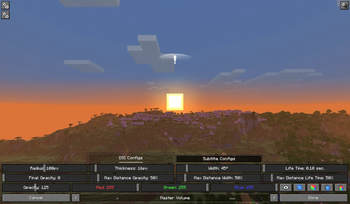
!(https://cdn.modrinth.com/data/cached_images/3e2a9193b590b58f6f63534f528bbfd8b2aba2e5.png)
Directional Sound Indicator
Which appears when a sound is played nearby. The indicator alerts the player and shows the direction of the sound. The indicator can have a customizable radius, width, color, opacity, etc. for each source or specific sound.!(https://cdn.modrinth.com/data/cached_images/f66e363eb113929127b0a57cc4365c59133aa055.png)
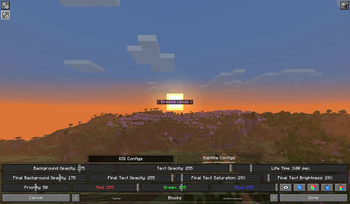
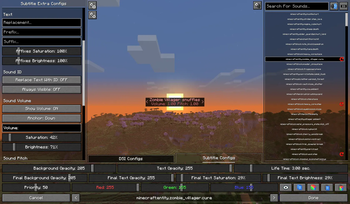
Enhanced Subtitles
Essentially, they're vanilla subtitles with the ability to be modified. Like DSI, they feature customizable color, background transparency, text transparency, and more for each source or specific sound. You can also change their position on the screen, their size, and even the text within them (add prefixes and suffixes, or completely change the text to your own).!(https://cdn.modrinth.com/data/cached_images/ba7bcaaf6c5dc9b1f4af0442b5edf8709e898764.png)
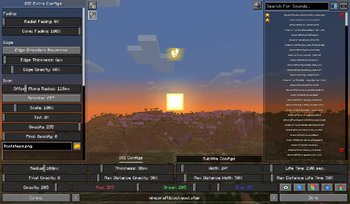
Configuration Screen
A menu that allows you to customize indicators and subtitles. To open the menu, go to "Options" and click the button next to the "Music & Sound Options", or use the keyboard shortcut . Recommend using hotkeys and some features for faster and more convenient setup.For more information, you can read the guide:
Configuration Screen Guide
How to get started
When you enter the menu, the first thing you should pay attention to is the main panel at the bottom of the screen. At the bottom center of that panel the currently selected sound source is shown - the source for which you will adjust various parameters. When sound is playing in the game world, the indicator and subtitle parameters will reflect the parameters for that sound source. You can switch the sound source being adjusted using the arrow buttons or by using hotkeys.Next, pay attention to the button at the top right - it opens the sounds list, where you can search for, select, and adjust patameters for each sound individually, ignoring its source during playback. To do this, choose a sound in the list (or select multiple sounds by holding or ) and change the parameters as you like. If necessary, you can remove an individual sound's parameters by clicking the red button to the right or by using hotkey.
Next, about the actual adjustment: it is performed using the sliders and buttons on the main panel. Each widget controls a separate parameter whose value you can read in a tooltip when you hover over it, or change and see on the on-screen indicator/subtitle in the center of the screen.
It's also important to mention the additional and global parameters - you can open their lists by clicking the corresponding buttons in the top-left corner. While additional parameters are the same as those on the main panel but less important and didn't fit there, global parameters are those whose values are identical for all sounds.
The last thing worth mentioning is the buttons in the bottom-right corner, namely:
Visibility toggle button - Switches the visibility of the indicators/subtitles for the selected sound source or a specific sound.
Copy all non-color parameters button - Copies the values of all non-color parameters _(those parameters that do not affect the color of the indicator or subtitle text)_ of the selected sound source or a specific sound, which allows pasting all these copied non-color parameters to other sound sources or specific sounds.
Copy all color parameters button - Copies the values of all color parameters _(those parameters that do affect the color of the indicator or subtitle text)_ of the selected sound source or a specific sound, which allows pasting all these copied color parameters to other sound sources or specific sounds.
Paste all non-color parameters button - Pastes the copied values of all non-color parameters _(those parameters that do not affect the color of the indicator or subtitle text)_ into the selected sound source or into a specific sound.
- Paste all color parameters button -
- Pastes the copied values of all color parameters _(those parameters that do affect the
📊 Mod Details
- Game
- Minecraft Mods
- Author
- DGNeoS
- Version
- 1.0.2
- Downloads
- 4,258
- Endorsements
- 48
- Category
- fabric
- Created
- 1/24/2026
- Updated
- 5/30/2026
- Game Versions
- 26.1, 26.1.1, 26.1.2
- Tags
- game-mechanics, management, utility
🔧 How to Install Minecraft Mods Mods
Download from Modrinth. Use Prism Launcher or drop into your mods folder.
📖 Full step-by-step install guide for Minecraft Mods →
Visit the official mod page for specific installation instructions for this mod.
🎮 Need cheat codes or console commands? Check ur gaming wiki for Minecraft Mods commands, item IDs, and more.
❓ Frequently Asked Questions
Which Minecraft Mods versions does Sound Visualizer support?
The author lists 26.1, 26.1.1, 26.1.2. Other versions may work but are untested by the author.
What is the latest version of Sound Visualizer?
Version 1.0.2, published 2026-05-30 with 4,258 downloads recorded at the source.
Keep browsing — more Minecraft Mods mods await