Storage Organizer
🟡 Updated this year⚠️ Install Order · 2 steps
Install in this order, then this mod last — most mods fail to load without their framework and dependencies in place.
🖼️ Gallery (2 images)
🔍 Analysis
- 👍 0.2% endorsement rate
- 🏆 #153 of 331 forge mods in this game by downloads
📋 About This Mod
# Storage Organizer A client-side mod that adds user-defined **filter tabs** to **Applied Energistics 2 terminals** *and* **Refined Storage 2 grids**. Create tabs that narrow the view to just the items you want — by mod, item tag, name, or per-stack data component (NBT) — and switch between them with one click. Both storage mods are optional: the jar loads cleanly with **either, both, or neither** installed, adding its tabs to whichever is present. It does nothing on its own. > **Formerly “AE2 Organizer”.** Same mod, same project, same settings — renamed in **2.0.0** because it is no longer AE2-only. Your existing tabs carry over automatically; there is nothing to migrate. > > If you install mods **by hand**, delete the old `AE2Organizer-*.jar` before adding `StorageOrganizer-*.jar`. The file name changed but the mod id didn't, so having both is the same mod twice and the game won't start. Launcher and modpack users are unaffected — it updates in place. ## What it does AE2 and RS both filter and sort their item list on the client; Storage Organizer hooks into that view, so tabs are purely client-side with **zero server load** — they work even when you connect to a server that doesn't have the mod. Each storage system is kept **fully separate**: AE2 terminals and RS grids have their own independent tabs, windows, and settings, and never share a filter. (You can copy a filter set from one to the other with (#windows).) The rest of this guide applies the same way to both — "terminal" below means an AE2 terminal *or* an RS grid. One or more **filter windows** attach to every terminal. Out of the box there's a single window docked to the terminal's right edge; you can add more, move them anywhere, and lay each out as a vertical list or a horizontal icon row (see (#windows)). Each window shows: - **All** (optional per window) — clears the filter. - **Your tabs** — click one to filter to that tab's items; click the active tab again to clear back to All. The list scrolls (mouse wheel or the scrollbar) when there are more tabs than fit. - **Settings icon** — opens the editor. Windows are drawn in each backend's **native look**: on an AE2 terminal they use AE2's own GUI style (so AE2 "dark mode" resource packs reskin them too) and AE2's gear icon; on an RS grid they use RS's grid style and RS's own wrench icon. A tab's filter combines with the storage's own search box (AND), so you can pick a broad tab and then type to narrow further. Only **one tab is active at a time** per storage system. ## Editing tabs Click the settings icon to open the editor. The left panel is a **tree**: each *window* node expands to the tabs inside it. Select a window row to edit that (#windows); select a tab row to edit the tab (name, icon, match mode, conditions) on the right. Toolbar: **+Win** (new window) · **+Tab** (new tab in the selected window) · **Copy** (duplicate the selected tab — or the whole window, with its tabs) · **Del** · **▲ ▼** (reorder within the window/among windows). A tab's **"Window…"** button opens a picker to move it to another window. Deleting a window that still has tabs asks first. Set a tab's **icon** and the item for `mod` / `tag` / `text` conditions in any of three ways: - **Built-in picker** — click the icon slot or a condition's **`…`** button to open a searchable item grid (works without JEI). - **Drag from your inventory** — shown along the bottom of the editor. - **Drag from JEI** — if JEI is installed, its item list appears beside the editor. What a chosen item does, by condition type: `mod` → its mod id · `text` → its display name · `tag` → opens a list of *that item's* tags to pick from (no need to know tag ids) · the **icon slot** → sets it as the tab icon. ## Tab criteria Each tab combines its conditions with **Match ANY** (OR) or **Match ALL** (AND): | Type | Matches | Example | |------|---------|---------| | `mod` | items from a mod id | `create` | | `tag` | items in an item tag | `c:ingots` | | `text` | display name contains text (case-insensitive) | `sword` | | `component` | a per-stack data component (see below) | — | Each condition also has an **`Is` / `Not`** toggle. `Not` turns it into an **exclusion** — anything it matches is *hidden*. Exclusions always apply on top of the positive conditions regardless of the match mode, so a tab reads as *(positives combined by ANY/ALL) and none of the exclusions*. For example: **Match ANY**, `Is tag c:oak_logs`, `Is tag c:spruce_logs`, `Not mod sophisticatedstorage` shows oak **or** spruce wood, but never the storage-mod's drawers. A tab with only `Not` conditions shows everything except those. Component checks: - `enchanted` — has enchantments (or stored enchantments, for books) - `named` — has a custom name - `damaged` — has taken damage - `custom_data_key` — its custom data contains a given NBT key (the *arg* field) - `component_type` — has a given component type id, e.g. `minecraft:potion_conten
# Storage Organizer
A client-side mod that adds user-defined filter tabs to Applied Energistics 2 terminals and Refined Storage 2 grids. Create tabs that narrow the view to just the items you want — by mod, item tag, name, or per-stack data component (NBT) — and switch between them with one click.
Both storage mods are optional: the jar loads cleanly with either, both, or neither installed, adding its tabs to whichever is present. It does nothing on its own.
> Formerly “AE2 Organizer”. Same mod, same project, same settings — renamed in 2. 0. 0 because it is no longer AE2-only. Your existing tabs carry over automatically; there is nothing to migrate. > > If you install mods by hand, delete the old `AE2Organizer-.jar` before adding `StorageOrganizer-.jar`. The file name changed but the mod id didn't, so having both is the same mod twice and the game won't start. Launcher and modpack users are unaffected — it updates in place.
## What it does
AE2 and RS both filter and sort their item list on the client; Storage Organizer hooks into that view, so tabs are purely client-side with zero server load — they work even when you connect to a server that doesn't have the mod.
Each storage system is kept fully separate: AE2 terminals and RS grids have their own independent tabs, windows, and settings, and never share a filter. (You can copy a filter set from one to the other with (#windows).) The rest of this guide applies the same way to both — "terminal" below means an AE2 terminal or an RS grid.
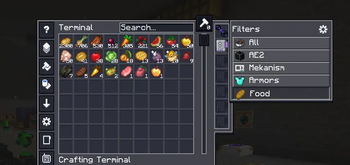
One or more filter windows attach to every terminal. Out of the box there's a single window docked to the terminal's right edge; you can add more, move them anywhere, and lay each out as a vertical list or a horizontal icon row (see (#windows)).
Each window shows:
- All (optional per window) — clears the filter.
- Your tabs — click one to filter to that tab's items; click the active tab again to clear back to All. The list scrolls (mouse wheel or the scrollbar) when there are more tabs than fit.
- Settings icon — opens the editor.
Windows are drawn in each backend's native look: on an AE2 terminal they use AE2's own GUI style (so AE2 "dark mode" resource packs reskin them too) and AE2's gear icon; on an RS grid they use RS's grid style and RS's own wrench icon. A tab's filter combines with the storage's own search box (AND), so you can pick a broad tab and then type to narrow further. Only one tab is active at a time per storage system.
## Editing tabs
Click the settings icon to open the editor. The left panel is a tree: each window node expands to the tabs inside it. Select a window row to edit that (#windows); select a tab row to edit the tab (name, icon, match mode, conditions) on the right.
Toolbar: +Win (new window) · +Tab (new tab in the selected window) · Copy (duplicate the selected tab — or the whole window, with its tabs) · Del · ▲ ▼ (reorder within the window/among windows). A tab's "Window…" button opens a picker to move it to another window. Deleting a window that still has tabs asks first.
Set a tab's icon and the item for `mod` / `tag` / `text` conditions in any of three ways:
- Built-in picker — click the icon slot or a condition's `…` button to open a searchable item grid (works without JEI).
- Drag from your inventory — shown along the bottom of the editor.
- Drag from JEI — if JEI is installed, its item list appears beside the editor.
What a chosen item does, by condition type: `mod` → its mod id · `text` → its display name · `tag` → opens a list of that item's tags to pick from (no need to know tag ids) · the icon slot → sets it as the tab icon.
## Tab criteria
Each tab combines its conditions with Match ANY (OR) or Match ALL (AND):
| Type | Matches | Example | |------|---------|---------| | `mod` | items from a mod id | `create` | | `tag` | items in an item tag | `c:ingots` | | `text` | display name contains text (case-insensitive) | `sword` | | `component` | a per-stack data component (see below) | — |
Each condition also has an `Is` / `Not` toggle. `Not` turns it into an exclusion — anything it matches is hidden. Exclusions always apply on top of the positive conditions regardless of the match mode, so a tab reads as (positives combined by ANY/ALL) and none of the exclusions. For example: Match ANY, `Is tag c:oak_logs`, `Is tag c:spruce_logs`, `Not mod sophisticatedstorage` shows oak or spruce wood, but never the storage-mod's drawers. A tab with only `Not` conditions shows everything except those.
Component checks:
- `enchanted` — has enchantments (or stored enchantments, for books)
- `named` — has a custom name
- `damaged` — has taken damage
- `custom_data_key` — its custom data contains a given NBT key (the arg field)
- `component_type` — has a given component type id, e.g. `minecraft:potion_conten
📊 Mod Details
- Game
- Minecraft Mods
- Author
- ljack2k
- Version
- 2.1.0+1.20.1
- Downloads
- 533
- Endorsements
- 1
- Category
- forge
- Created
- 6/24/2026
- Updated
- 8/24/2026
- Game Versions
- 1.20.1
- Tags
- storage, utility
🔧 How to Install Minecraft Mods Mods
Download from Modrinth. Use Prism Launcher or drop into your mods folder.
📖 Full step-by-step install guide for Minecraft Mods →
Visit the official mod page for specific installation instructions for this mod.
🎮 Need cheat codes or console commands? Check ur gaming wiki for Minecraft Mods commands, item IDs, and more.
❓ Frequently Asked Questions
Which Minecraft Mods versions does Storage Organizer support?
The author lists 1.20.1. Other versions may work but are untested by the author.
What is the latest version of Storage Organizer?
Version 2.1.0+1.20.1, published 2026-08-24 with 533 downloads recorded at the source.
Keep browsing — more Minecraft Mods mods await