ScreenEffects
🟠 Updated over a year ago🖼️ Gallery (1 images)

🔍 Analysis
- 👍 1.4% endorsement rate — high engagement, a strong quality signal
- 🏆 #996 of 2025 datapack mods in this game by downloads
📋 About This Mod
<img align="center" src="https://raw.githubusercontent.com/Trioplane/ScreenEffects/refs/heads/main/repository/images/screen-effects-banner.png"> # <p align=center>ScreenEffects by Trplnr</p> > <p align=center>A small flexible library for showing animated screen overlays to the user.</p> ## <p align=center>Demo</p> <iframe align=center width="560" height="315" src="https://www.youtube-nocookie.com/embed/J5cWNG-nL1w" title="YouTube video player" frameborder="1" allow="accelerometer; autoplay; clipboard-write; encrypted-media; gyroscope; picture-in-picture; web-share" allowfullscreen></iframe> ## <p align=center>Usage</p> ### Making Screen Effects using the builder Deno file: > **IMPORTANT**: > Using this method requires the following to be installed in your system: (https://deno.land/), (https://ffmpeg.org/). After getting those, restart your computer. A screen effect is composed of multiple font frames that the datapack uses to show the animation. A **utility Deno JS file is provided** with the resource pack inside the `screen_effects` folder to make this process easier. #### 1. Making the animation > **NOTE**: > - You can use any image editing software you like as long as it can **export your animation into a spritesheet**. (https://www.aseprite.org/) has this functionality. > - It is recommended to make a **256x256 .png file** for the best results. - Start by creating an animation. <img align="center" src="https://raw.githubusercontent.com/Trioplane/ScreenEffects/refs/heads/main/repository/images/making-screen-effects-step1-img1.png"> <br> - Export your animation into a **vertical** spritesheet inside the `screen_effects` folder. <br> <img align="center" src="https://raw.githubusercontent.com/Trioplane/ScreenEffects/refs/heads/main/repository/images/making-screen-effects-step1-img2.png"> <br> - You can add more spritesheets inside the `screen_effects` folder if you want more screen effects. #### 2. Building the animations - To prepare for building the animations, go inside the `buildScreenEffects.js` folder and adjust these configs. ```js // -------------CONFIGS--------------- // Replace with the namespace you use! const NAMESPACE = "trplnr"; // If you want the font JSON files to be formatted, make this boolean true. const prettyPrintFontFiles = false; // If you want to see the ffmpeg logs, make this boolean true. const showFFMPEGLogs = false; // ----------------------------------- ``` - To make your amazing animations usable by the datapack, You can run a command in your terminal to convert your spritesheets into frames! - Open your preferred terminal and **make sure you are inside the `screen_effects` folder**. - After that, run this command ```sh deno run --allow-all .\buildScreenEffects.js ``` <img align="center" src="https://raw.githubusercontent.com/Trioplane/ScreenEffects/refs/heads/main/repository/images/making-screen-effects-step1-img3.png"> - After running that, if everything is successful, it should look like this: <img align="center" src="https://raw.githubusercontent.com/Trioplane/ScreenEffects/refs/heads/main/repository/images/making-screen-effects-step1-img4.png"> - Congrats! You've successfully turned your wonderful animations into frames! :tada: - If you only want to to compile 1 spritesheet, simply run ```sh deno run --allow-all .\buildScreenEffects.js filename.png ``` --- ### Registering the Screen Effects The datapack needs to have data to know what a screen effect is so you have to register it. Here is an example on how you can register one. > ScreenEffect schema shown below this section. ```mcfunction # To add your own screen effects to the global registry, # simply copy what is shown here. data modify storage example:scrfx_data screen_effects set value { \ "examples:toast": { \ tps: 1, \ frame_count: 31, \ path: "example:scrfx/exampletoast" \ }, \ "examples:transition": { \ tps: 1, \ frame_count: 69, \ path: "example:scrfx/exampletransition", \ callbacks: { \ "26": "say This frame covers the whole screen" \ } \ }, \ } function scrfx:add_screen_effects {storage: "example:scrfx_data", path: "screen_effects"} ``` ### The ScreenEffect Schema This is the definition of a ScreenEffect. ```ts { /** * The name of the screen effect, * preferrably namespaced. */ "ns:identifier": { /** * How fast each frame * shows up measured in ticks. * * Just like fps but well in ticks. * * Must be above zero. */ tps: <int>, /** * How many frames are in the animation. */ frame_count: <int>, /** * The font resource location * of the animation with the * number at the end removed. */ path: <resource_location>, /** * Defines what commands run in a certain fra

#
ScreenEffects by Trplnr
>A small flexible library for showing animated screen overlays to the user.
##
Demo
##
Usage
### Making Screen Effects using the builder Deno file:> IMPORTANT: > Using this method requires the following to be installed in your system: (https://deno.land/), (https://ffmpeg.org/). After getting those, restart your computer.
A screen effect is composed of multiple font frames that the datapack uses to show the animation.
A utility Deno JS file is provided with the resource pack inside the `screen_effects` folder to make this process easier.
#### 1. Making the animation > NOTE: > - You can use any image editing software you like as long as it can export your animation into a spritesheet. (https://www.aseprite.org/) has this functionality. > - It is recommended to make a 256x256 .png file for the best results. - Start by creating an animation.
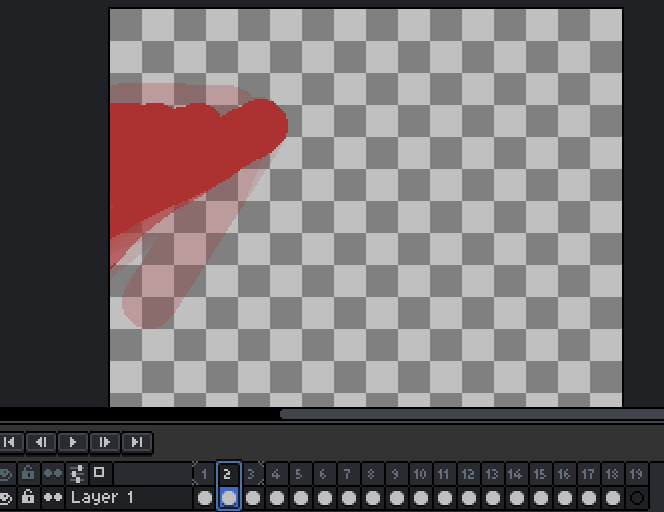
- Export your animation into a vertical spritesheet inside the `screen_effects` folder.

- You can add more spritesheets inside the `screen_effects` folder if you want more screen effects.
#### 2. Building the animations - To prepare for building the animations, go inside the `buildScreenEffects.js` folder and adjust these configs. ```js // -------------CONFIGS--------------- // Replace with the namespace you use! const NAMESPACE = "trplnr";
// If you want the font JSON files to be formatted, make this boolean true. const prettyPrintFontFiles = false;
// If you want to see the ffmpeg logs, make this boolean true. const showFFMPEGLogs = false; // ----------------------------------- ``` - To make your amazing animations usable by the datapack, You can run a command in your terminal to convert your spritesheets into frames! - Open your preferred terminal and make sure you are inside the `screen_effects` folder. - After that, run this command ```sh deno run --allow-all .\buildScreenEffects.js ```

- After running that, if everything is successful, it should look like this:
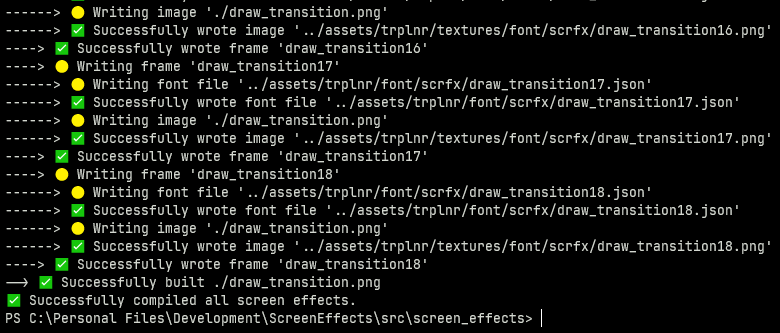
- Congrats! You've successfully turned your wonderful animations into frames! :tada:
- If you only want to to compile 1 spritesheet, simply run
- ```sh
- deno run --allow-all .\buildScreenEffects.js filename.png
- ```
- --
- ### Registering the Screen Effects
The datapack needs to have data to know what a screen effect is so you have to register it.
Here is an example on how you can register one.
> ScreenEffect schema shown below this section. ```mcfunction # To add your own screen effects to the global registry, # simply copy what is shown here. data modify storage example:scrfx_data screen_effects set value { \ "examples:toast": { \ tps: 1, \ frame_count: 31, \ path: "example:scrfx/exampletoast" \ }, \ "examples:transition": { \ tps: 1, \ frame_count: 69, \ path: "example:scrfx/exampletransition", \ callbacks: { \ "26": "say This frame covers the whole screen" \ } \ }, \ }
function scrfx:add_screen_effects {storage: "example:scrfx_data", path: "screen_effects"} ```
### The ScreenEffect Schema
This is the definition of a ScreenEffect.
```ts
{
/*
The name of the screen effect,
preferrably namespaced.
/
"ns:identifier": {
/*
How fast each frame
shows up measured in ticks.
Just like fps but well in ticks.
Must be above zero.
/
tps:
/*
How many frames are in the animation.
/
frame_count:
/
The font resource location
of the animation with the
number at the end removed.
/
path:
📊 Mod Details
- Game
- Minecraft Data Packs
- Author
- Trplnr
- Version
- v2.0.1
- Downloads
- 1,406
- Endorsements
- 20
- Category
- datapack
- Created
- 4/8/2025
- Updated
- 8/22/2025
- Game Versions
- 1.21.1, 1.21.2, 1.21.3, 1.21.4, 1.21.5
- Tags
- library, utility
🔧 How to Install Minecraft Data Packs Mods
Download from Modrinth. Use Prism Launcher or drop into your mods folder.
📖 Full step-by-step install guide for Minecraft Data Packs →
Visit the official mod page for specific installation instructions for this mod.
🎮 Need cheat codes or console commands? Check ur gaming wiki for Minecraft Data Packs commands, item IDs, and more.
❓ Frequently Asked Questions
Which Minecraft Data Packs versions does ScreenEffects support?
The author lists 1.21.1, 1.21.2, 1.21.3, 1.21.4, 1.21.5, 1.21.6. Other versions may work but are untested by the author.
What is the latest version of ScreenEffects?
Version v2.0.1, published 2025-08-22 with 1,406 downloads recorded at the source.
Keep browsing — more Minecraft Data Packs mods await