Inventory Sync
⚪ Last updated 2024🖼️ Gallery (1 images)
🔍 Analysis
- 🏆 #1065 of 2046 datapack mods in this game by downloads
📋 About This Mod
# Inventory Sync !(https://cdn.modrinth.com/data/cached_images/fa058e082e8b72332cd44790dfb06b7c39cb8133.png) ### Latest Data Pack Version v1.4 ### Compatible Minecraft Versions Java Edition 1.20.2 - 1.21.1 # What does this data pack do? Have you ever wanted to play in survival mode and creative mode at the same time? But when you swap to creative mode, and you end up accidentally deleting your hard-earned survival items while grabbing and removing items from the creative invetory? This data pack fixes that by creating separate inventories for each game mode. Now when you swap from Survival Mode to Creative Mode, you have a brand new clean inventory just for Creative Mode to use. Then when you swap back to survival mode, all your survival items are returned to you as you left them. No more fear of losing those items you worked so hard for. # How do you use it? ### Enable/Disable Once you have installed it, all you need is to run this command: ``` /function invsync:toggle ``` - Operator permissions will be required in order to run the command. - You will enable the inventory syncing for your player. No other players will have it enabled until they run the command themselves. - Rerunning the command will disable syncing, and you will once again have one inventory that will transfer between game modes rather than staying separated. ⚠️ Warning: If you have items in Survival Mode you want synced to survival, make sure to enable Inventory Syncing in Survival Mode so that the items are not saved to the incorrect game mode. (i.e The current inventory will be linked to the game mode you are in when enabled, so make sure it is the correct one) ### Behavior - Now if you swap between game modes, your items will be saved for the previous game mode you were in, and your inventory will be cleared and you can now use it. - Swapping back to the previous game mode will restore the items to the state they were last in. Item data like: durability, enchantments, item names, and even custom data like components will all be restored. - This will only be enabled for *your player only*, if any other players wish to have this enabled, they must run the command themselves. ### Backups You are also able to backup a specific inventory configuration in case you want to do something destructive, or just want extra security. You can backup all your inventories by running the command below: ``` /function invsync:backup ``` If you ever want to restore the items that you have backed up and override your current inventory, use this command: ``` /function invsync:restore ``` # Installation ### Method 1 (Pre-made world) 1. Locate to your .minecraft/saves/\<worldname\>/datapacks folder. 2. Paste the .zip file you installed into this folder. 3. Enter your Minecraft world and type /reload. 4. A message should pop up that says "Datapack Installed". ### Method 2 (Create new world) 1. In the Create new world screen, click the "Datapacks" button 2. Drag and drop the .zip file you downloaded into the game window. 4. Apply the datapack. 5. Create new world. ### Uninstalling If you ever wish to uninstall the data pack, then run this command: ``` /function invsync:z_backend/uninstall ``` - This will remove internals of the data pack and you can remove the InvSync.zip from the world save. - Removing file without running this command will keep any data left from the data pack. If you wish to keep the data for future reinstallation or updating to a newer version, do not run command.
# Inventory Sync
!(https://cdn.modrinth.com/data/cached_images/fa058e082e8b72332cd44790dfb06b7c39cb8133.png)
### Latest Data Pack Version v1. 4
### Compatible Minecraft Versions Java Edition 1. 20. 2 - 1. 21. 1
# What does this data pack do?
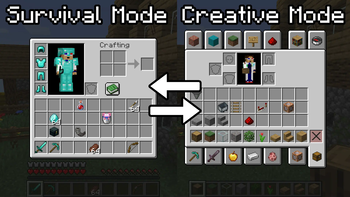
Have you ever wanted to play in survival mode and creative mode at the same time? But when you swap to creative mode, and you end up accidentally deleting your hard-earned survival items while grabbing and removing items from the creative invetory?
This data pack fixes that by creating separate inventories for each game mode. Now when you swap from Survival Mode to Creative Mode, you have a brand new clean inventory just for Creative Mode to use. Then when you swap back to survival mode, all your survival items are returned to you as you left them. No more fear of losing those items you worked so hard for.
# How do you use it?
### Enable/Disable
Once you have installed it, all you need is to run this command: ``` /function invsync:toggle ``` - Operator permissions will be required in order to run the command.
- You will enable the inventory syncing for your player. No other players will have it enabled until they run the command themselves.
- Rerunning the command will disable syncing, and you will once again have one inventory that will transfer between game modes rather than staying separated.
(i.e The current inventory will be linked to the game mode you are in when enabled, so make sure it is the correct one)
### Behavior
- Now if you swap between game modes, your items will be saved for the previous game mode you were in, and your inventory will be cleared and you can now use it.
- Swapping back to the previous game mode will restore the items to the state they were last in. Item data like: durability, enchantments, item names, and even custom data like components will all be restored.
- This will only be enabled for your player only, if any other players wish to have this enabled, they must run the command themselves.
### Backups
You are also able to backup a specific inventory configuration in case you want to do something destructive, or just want extra security. You can backup all your inventories by running the command below: ``` /function invsync:backup ``` If you ever want to restore the items that you have backed up and override your current inventory, use this command: ``` /function invsync:restore ``` # Installation
### Method 1 (Pre-made world)
1. Locate to your .minecraft/saves/\
### Method 2 (Create new world) 1. In the Create new world screen, click the "Datapacks" button 2. Drag and drop the .zip file you downloaded into the game window. 4. Apply the datapack. 5. Create new world.
### Uninstalling
If you ever wish to uninstall the data pack, then run this command: ``` /function invsync:z_backend/uninstall ```
- This will remove internals of the data pack and you can remove the InvSync.zip from the world save.
- Removing file without running this command will keep any data left from the data pack. If you wish to keep the data for future reinstallation or updating to a newer version, do not run command.
📊 Mod Details
- Game
- Minecraft Data Packs
- Author
- JDawgtor
- Version
- 1.3
- Downloads
- 371
- Endorsements
- 1
- Category
- datapack
- Created
- 9/3/2024
- Updated
- 9/2/2024
- Game Versions
- 1.20.2, 1.20.3, 1.20.4, 1.20.5, 1.20.6
- Tags
- management, storage, utility
🔧 How to Install Minecraft Data Packs Mods
Download from Modrinth. Use Prism Launcher or drop into your mods folder.
📖 Full step-by-step install guide for Minecraft Data Packs →
Visit the official mod page for specific installation instructions for this mod.
🎮 Need cheat codes or console commands? Check ur gaming wiki for Minecraft Data Packs commands, item IDs, and more.
❓ Frequently Asked Questions
Which Minecraft Data Packs versions does Inventory Sync support?
The author lists 1.20.2, 1.20.3, 1.20.4, 1.20.5, 1.20.6, 1.21. Other versions may work but are untested by the author.
What is the latest version of Inventory Sync?
Version 1.3, published 2024-09-02 with 371 downloads recorded at the source.
Keep browsing — more Minecraft Data Packs mods await