Tutorial - Creating a Custom Inquisitor Portrait (with GIMP)
⚪ Last updated 2015Preview
🔍 Analysis
- 👍 11.0% endorsement rate — high engagement, a strong quality signal
- 🏆 #6 of 23 Modders Resources and Tutorials mods in this game by downloads
📋 About This Mod
Tutorial - Creating a Custom Portrait for Your Inquisitor
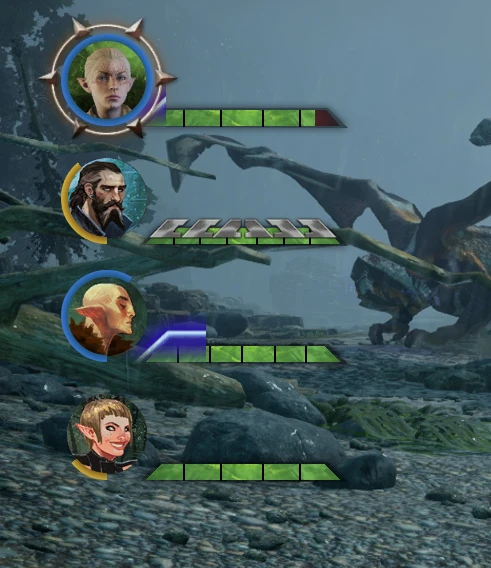
This tutorial is meant to show you how to create a simple custom portrait for your Inquisitor using a screenshot from the game (or some other image). If you already know how to use GIMP pretty well then you probably do not need this tutorial. You may still find my template files useful. You can get them from the Files section of this mod.
Many of the steps contain a link to an image that shows how to do that step in case you need a visual. You can also go to the Tutorial Image Album and use it to follow along instead of clicking on each image link individually. Throughout the tutorial are also some links to the GIMP user manual, for anyone that wants/needs more clarification on certain tools or functions.
I tried to make this is as beginner-friendly as possible, but feel free to ask in the comments if you have any questions or need more help. :)
You Will Need: GIMP 2. 8 GIMP DDS Plugin (Installation instructions are in the included readme.txt) The "Portrait Tutorial Files" available in the Files section of this mod.
Section 1: Take A Screenshot/Pick an Image
Take a screenshot of your Inquisitor. Or find an image that you want to use instead of a screenshot.
Suggestions: I recommend using the Black Emporium to get a nice, uncluttered screenshot at a good angle. The companion's portraits are all angled to the right. If you want to match them you should pick a screenshot with your Inquisitor angled at least a bit to the right. image
Section 2: Cropping Your Screenshot/Image
The next thing you need to do is crop your image down to just the part that you want to actually be in your portrait. What you want to end up with at the end of this section is a PERFECT SQUARE image featuring your Inquisitor's face. Important Note: If at any point you make mistakes, just use the Undo function by hitting "CTRL+Z" or Selecting "Edit-> Undo ". (User Manual: Undo)
1. Open the image in GIMP. You can do this by right-clicking the filename and selecting "Edit in GIMP." You can also open the image by starting GIMP, then selecting File->Open.
2. Select the "Rectangle Select Tool" from the Toolbox. image (User Manual: Rectangle Select Tool)
3. Use the rectangle select tool to select the part of the image that you want to be your portrait. It must be a perfect square. You do this by holding down the mouse but
A step-by-step tutorial for Dragon Age: Inquisition players who want to create custom Inquisitor portraits using the free image editor GIMP. Covers the process from start to finish, making it accessible for modding beginners. With 204 endorsements and 1,852 downloads, it's a well-received resource for the game's modding community.
✨ Key Features
📊 Pros & Cons
✅ Pros
- Free and accessible – GIMP is free, so no expensive Photoshop needed
- Community-approved with 204 endorsements and nearly 2k downloads
- Perfect for beginners – breaks down the portrait creation process clearly
⚠️ Cons
- Last updated in 2015 – may not cover newer game updates or modding tools
- Only covers GIMP, so Photoshop users will need to adapt the steps
- No screenshots or images in the description – you'll have to download to see what you're getting
For Dragon Age: Inquisition modders who want to make custom portraits for their Inquisitor without spending money on image editors. If you're new to modding and want a clear, step-by-step guide, this is a great starting point. Skip if you're looking for ready-made portraits – this is a tutorial, not a mod pack.
💡 Beginner Tips
- Make sure you have GIMP installed before starting – it's free from gimp.org
- Follow the tutorial exactly – portrait dimensions and file formats matter for the game to recognize them
- Test your portrait in-game early to avoid redoing work later
📊 Mod Details
- Game
- Dragon Age Mods
- Author
- serlurkalot
- Version
- 1.0
- Downloads
- 1,852
- Endorsements
- 204
- Category
- Modders Resources and Tutorials
- Created
- 5/20/2015
- Updated
- 5/20/2015
🔧 How to Install Dragon Age Mods
Download from Nexus.
📖 Full step-by-step install guide for Dragon Age →
Visit the official mod page for specific installation instructions for this mod.
🎮 Need cheat codes or console commands? Check ur gaming wiki for Dragon Age commands, item IDs, and more.
Keep browsing — more Dragon Age mods await